Troubleshooting
If you have a problem, check this troubleshooting section first, then oca-problems on GitHub, then contact oca-operations.
The philosophy of problem solving
Problems encountered while observing at OCM have their source in either ASA software/hardware or our software/hardware. In order to properly address the problem and choose the right action to solve it, first we must assess if the problem is "on their side" or "on our side". To test if a problem is on our side, use complementary software, e.g. not only TOI but also "OCA Command Line Interface" (OCA-CLI) to double-check if the information that is received from "ASA side" is the same for TOI and OCA-CLI. If yes – the problem is theirs, if not – the problem is ours. Be creative and design tests which can determine if the problem is on their or our side.
Monitoring weather
OCAM doesn't work and I cannot check the wind speed
OCA Monitor (OCAM) is a piece of software developed by pwielgorski and he will know how to fix it. Let him know on oca-operations or directly what the problem is, and wait patiently for the solution. In the meantime you can check the wind speed in 2 ways:
-
you can read the speen directly from the weather station located in the electric room (Fig. 1).
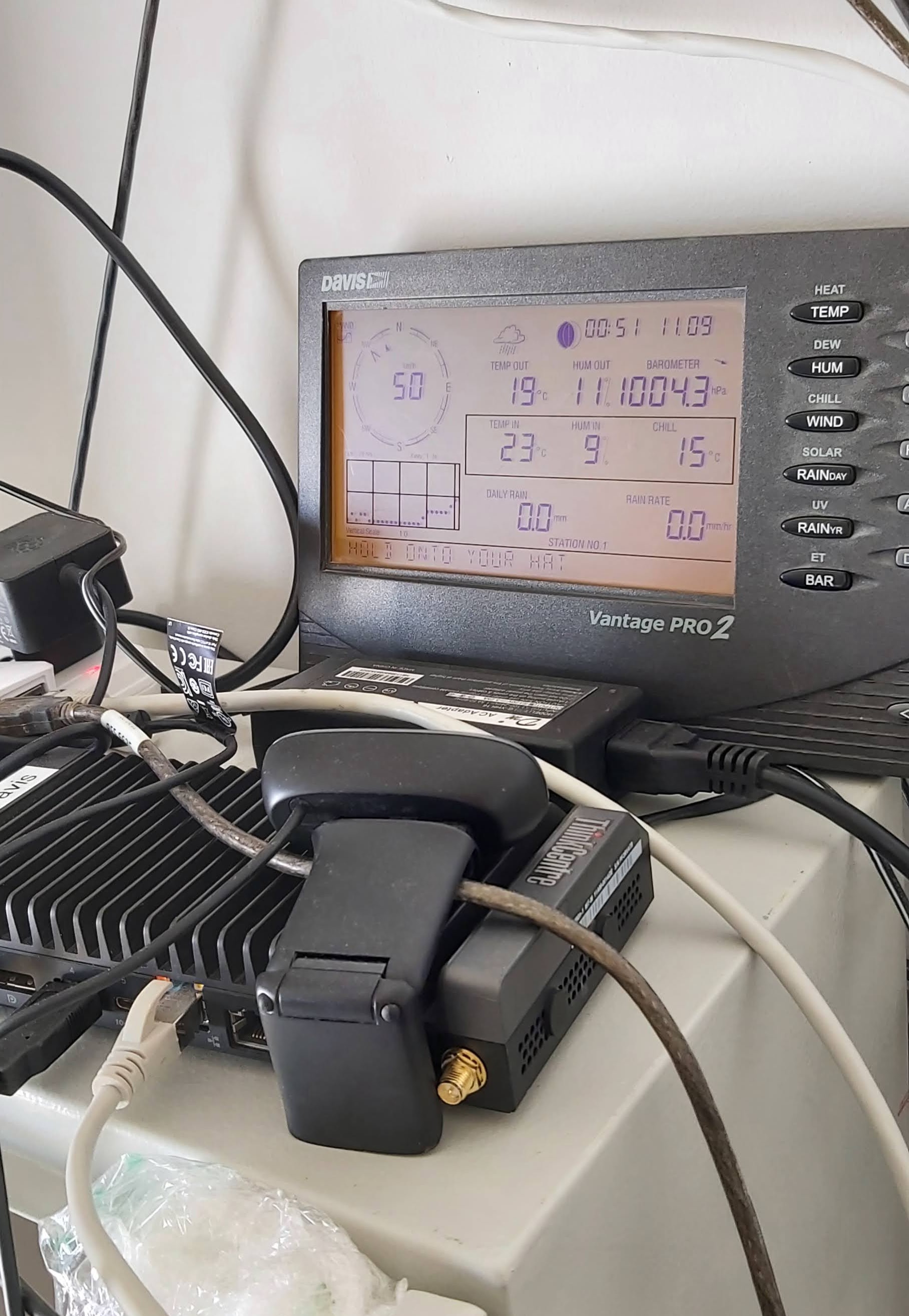
Fig. 1. Wind meter recorded by a camera in the electric room -
you can check the wind speed at Paranal and based on it estimate the wind speed at OCM. The wind speed should be roughly the same or up to 5 m/s faster.
Allsky
AllSky camera doesn't show new photos
If you can't see the allsky photo, and instead you're seeing red messages "ERROR unable to save messages", it means that the disk is full of
old photos and the new ones don't have space to be saved. In order to release the disk space, connect via ssh to observer@allsky.oca.lan from any
reasonable station, and in the terminal remove all directories from ~/src/allsky/images/. Back in the web browser and allsky webpage, scroll down
until you see a new allsky photo and the end of error messages. Click the button to clear all the messages.
If you get a different error, e.g. "Failed getting image", and you still can't see any new photo, enter the allsky computer from DWservice web page and restart it from the top right contex menu.
TCU
Rotator value in the red ACC window is wrong
The rotator value in the red ACC window shows different value than the values in TOI, GUI TEXT, or AutoSlew. Just ignore the value in the red ACC window.
I can't close programs in TCU, I can't restart TCU
You are trying to restart programs in TCU and fail because the programs ignore the "X" icon you push, and neither can you restart TCU. In this case:
- Start a web browser and go to the OCM home page
- Click a link to "wk06-power" or "zb08-power" or "jk15-power"; this directs you to the PDU (Power Distribution Unit) of each telescope, where you can restart them.
- Log in as observer if necessary
- For WK06 and JK15 reseting TCU is straighforward: simply push a button "Reset" in the last row showing "TCU" or "DDM200 TCU". For ZB08 click: PDU → Outlet Action → Control → Drop-down menu Control Action: Reboot → tick TCU → Next → Reset.
- Wait about a minute until a given TCU is available again.
wk06-tcu unavailable
wk06-tcu was reported unavailable (Fig. 2). That means we couldn't access it in order to restart it. Because of this problem WK06 telescope and dome were also non-responsive. After checking the telescope in the dome, we noticed that the motors are off, and the telescope relaxed into its balanced position pointing at the altitude of about 20-25 deg. We don't why wk06-tcu went unavailable.
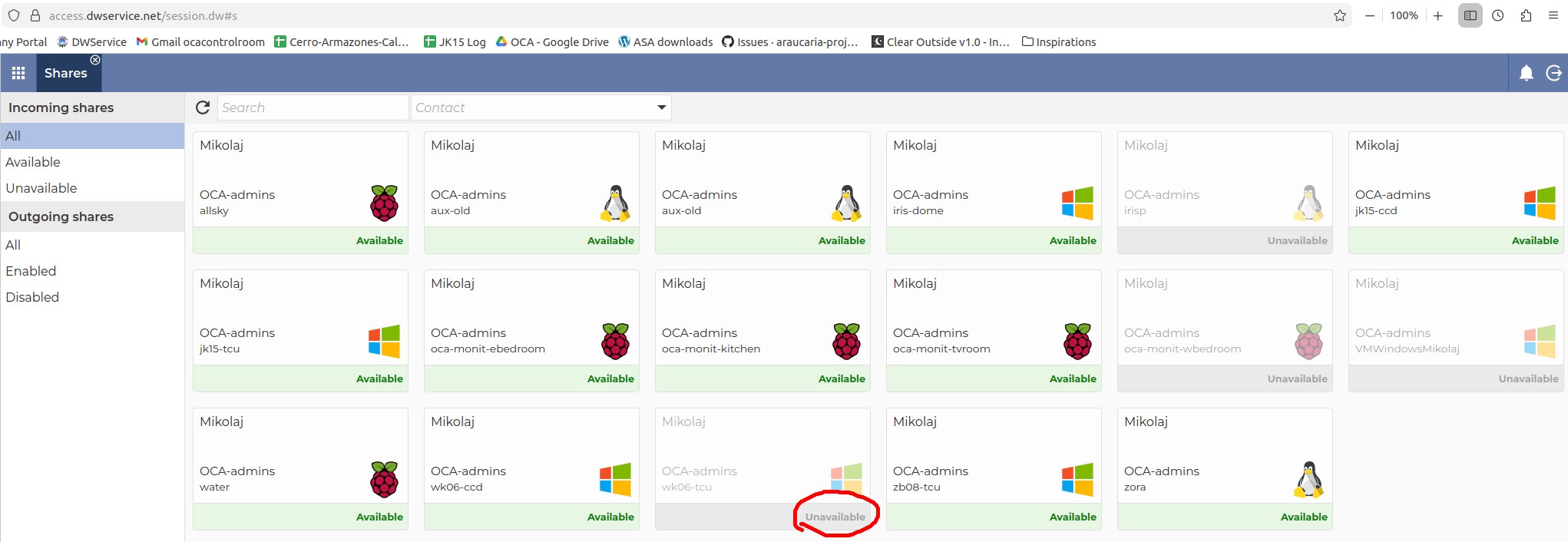
Solution: Using a web browser:
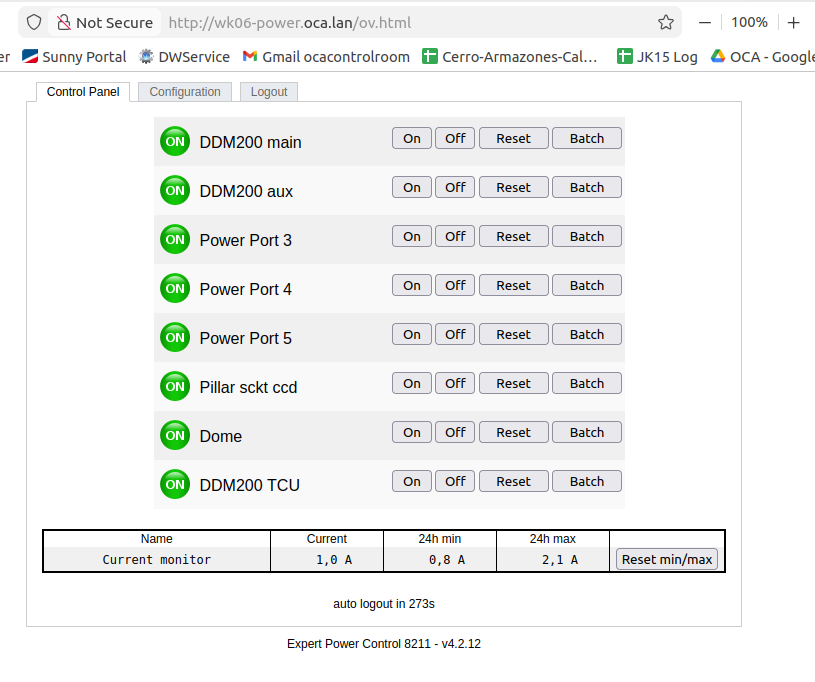
- Click a link to "wk06-power" on the OCA Home webpage to direct you to the WK06 power panel (also known as PDU panel, from Power Distribution Unit)
- Push a button "Reset" in the last row showing "DDM200 TCU" (Fig. 3)
- Wait about a minute until wk06-tcu shows available again. Login to wk06-tcu as normal. Start all the programs on tcu + ccd and resume observations.
Nerd mode
This behavior might be connected to updates on Windows machines. The updates instal themselves without asking. The DWAgent doesn't work afterwards (wk06 was pingable but not available via DWService). No reason has been found for this behavior yet.
Errors in Autoslew log
If you see errors in the Autoslew log window like in th picture, you may not operate telescopes until you clear errors using [Clear Errors] button in Autoslew.
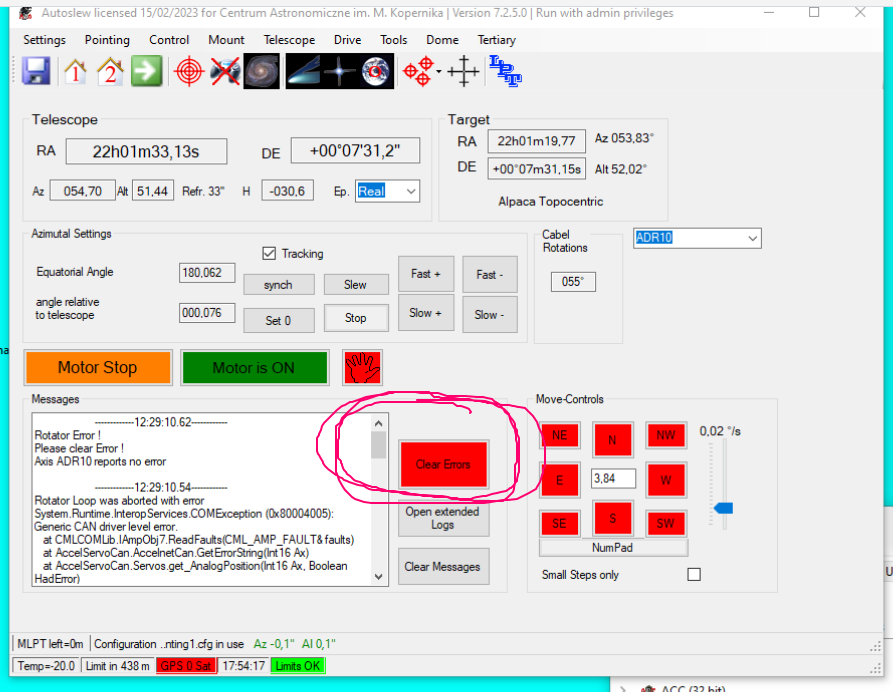
ZB08 after starting program 'RemoteServer' the message panel shows ERROR(s)
For now, there are some problems with connection and the camera or filter wheel don't always connect.
If you see ERROR, close all open windows (of all running programs) and restart the Windows operating system.
As a result, your remote connection will close. Wait 1-2 min for the reboot of Windows and reconnect
using rdesktop command as described in Software manual.
If your problem is related to WK06 or JK15, remember that they have has 2 computers, responsible for the telescope ("wk06-tcu", "jk15-tcu") and the camera ("wk06-ccd", "wk06-ccd"), and depending on your problem, you might restart just one of them, or both.
RemoteServer and ASCOM drivers on Windows don't start
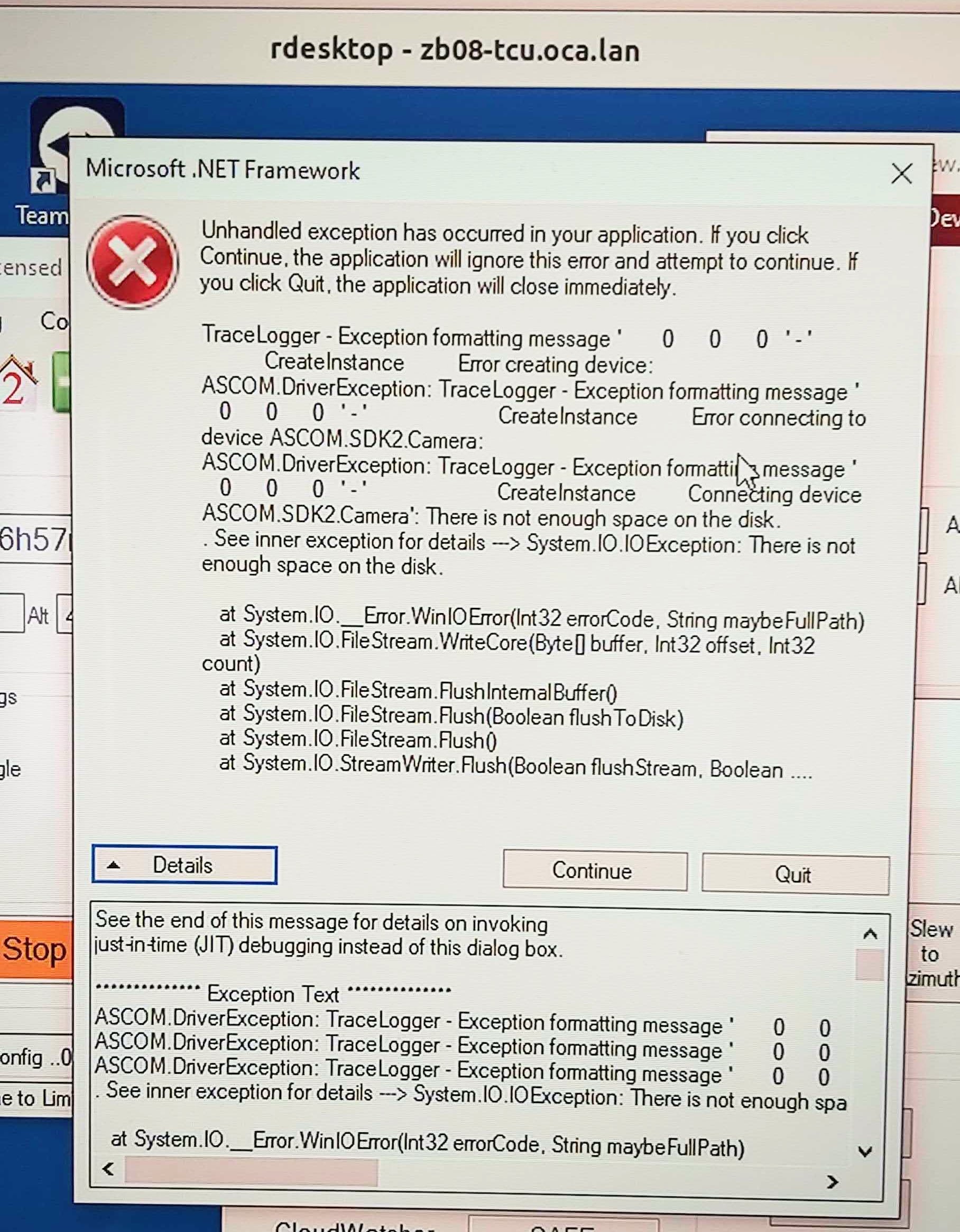
If you get a message like in Fig. 4, it indicates that not enough space is left on the disk to the start the program. To solve it, connect via rdesktop on aux computer, locate logs in a folder ASCOM and ASCOM.Alpaca, which are listed on the left-hand side of the File Explorer as starred, and remove old logs (older than 2 weeks old for ASCOM, and older than 4 days old for ASCOM.Alpaca). Alternatively, you can find them from its absolute path:
- c:\Users\asaroot\Documents\ASCOM
Leave files 2 weeks back, remove the rest of them.
- c:\ProgramData\ASA\ACC\ASCOM.Alpaca
Leave 4 days back, remove the rest of them.
This will temporarily solve the problem, so you will have to do this again in the near future, and until we create a script for automatic removal of these logs. However, for now, you can start the RemoteServer normally.
Tip
You can check remaining disk space on all computers on Graphana Dashboard.
Observing
A telescope waits during the night, not enought targets, telescope stays idle
When this happens, contact pkarczmarek [at] camk.edu.pl; she will add more targets so that the telescope doesn't stay idle. In the meantime, copy OBs of targets selected by TPG so that they cover the WAIT time.
Stars look like lines, smudges, not points
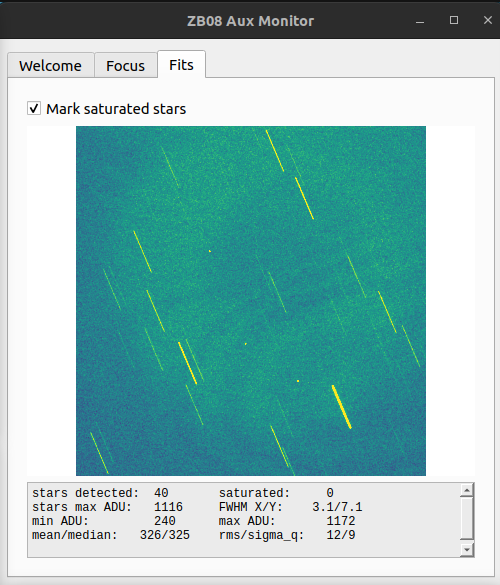
If your stars look like ones in Fig. 5, you are observing with ZB08 or JK15, most probably your target is currently at alt > 80°. Wait until your target goes lower and observe something else in the meantime.
Another reason is that a tlescope reached its movement limit while observing, because it didn't anticipate (calculate) it would happen while executing a sequence. In such case stop the exposure immediately (it's garbage anyways), stop the program in Plan Manager window on TOI, and simply start the same OB the sequence. The telescope should now make a full turn before pointing to the target again. If you are observing with WK06, reaching the telescope limit means that it has to do the meridian flip (flip to the other side of the pier); the procedure is the same as above: stop the program in Plan Manager and start again from the same target.
Rorator not working
Sometimes the rotator (actually derotator of the field) stops working correctly. This might happen due to a number of reasons: 1) the rotator reached its limit during exposure and cannot go further; 2) the rotator didn't completely set in its position before the observations started; 3) the telescope is too close to zenith (relevant for JK15 and ZB08) or the WK06 telescope needs to do the meridian flip; 4) the driver of the rotator is wrong (relevant to JK15); 5) other.
In case of points 1, 2, and 3 the usual solution to the problem is to stop the exposure immediately and start it again. You might try to move to a different target first and the go back to the target that experienced the rotator problems, and the problems should be gone.
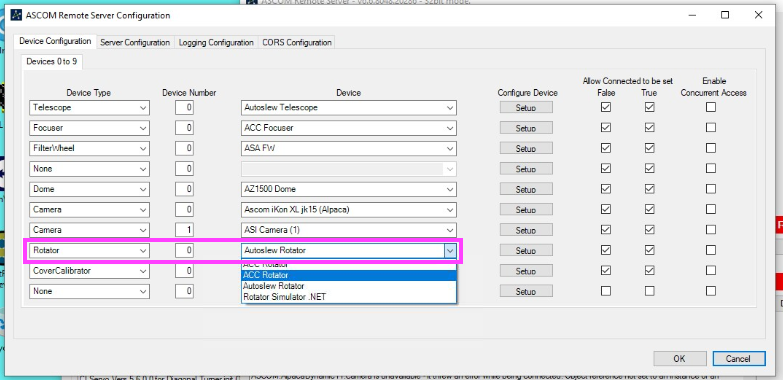
In case of the wrong driver of the rotator at JK15, this happend when you restart the "ASCOM Remote Server Console" on jk15-tcu computer. To solve the problem, access the configuration window of the "ASCOM Remote Server Console" and check the name of the rotator driver. It is most probably set back to a default one "ACC Rotator", which is the wrong one. Choose "Autoslew Rotator" instead (the third one from the drop-down menu), as shown in Fig 6.
If this is not your case, we might have some other unknown problem (point 5). In such a case check the log window in Autoslew for any error message, such as "current limit reached" or anything else that might be helpful. Some reports on GitHub:
- ZB08 rotator speed not in sync with tracking
- ZB08 rotator rotates 90deg in a random moment
- ZB08 rotator stoped tracking
If you found yet another wrong behavior of the rotator on any of the telescopes, report it by opening an issue here.
Dome reports state which is different from the reality and do not respond
Usually you see Open state for shutter and/or Slewing state of the dome, which is not true.
It happens, that the ASA Dome software on TCU computer loses serial communication with the dome.
If you open TCU computer remote window, you can see that there is no communication indicated in the status line TX/RX. Also, "Last RX" shows a very big numer (in ms).
The solution is to restart the ASA Dome software on TCU computer.
Follow the procedure:
- Open the remote desktop or DWService connection to TCU computer.
- Close the RemoteServer program.
- Close the ASA Dome program.
- Start the ASA Dome program.
- Start the RemoteServer program.
Closing the dome by hand
The instructions apply to domes of WK06, ZB08 and JK15.
There are 3 ways of opening/closing the dome:
1) by clicking a button in the software, e.g. TOI,
2) by pushing a physical button inside the dome (photo needed),
3) by pulling the shutter of the dome using your very own muscles (manual closing).
The instructions below explain this 3rd, manual way, to close the dome shutter.
The movement of the dome shutter is controlled by 2 motors:
1) the lower motor located at the bottom of the shutter
2) the upper motor located at the very top of the shutter
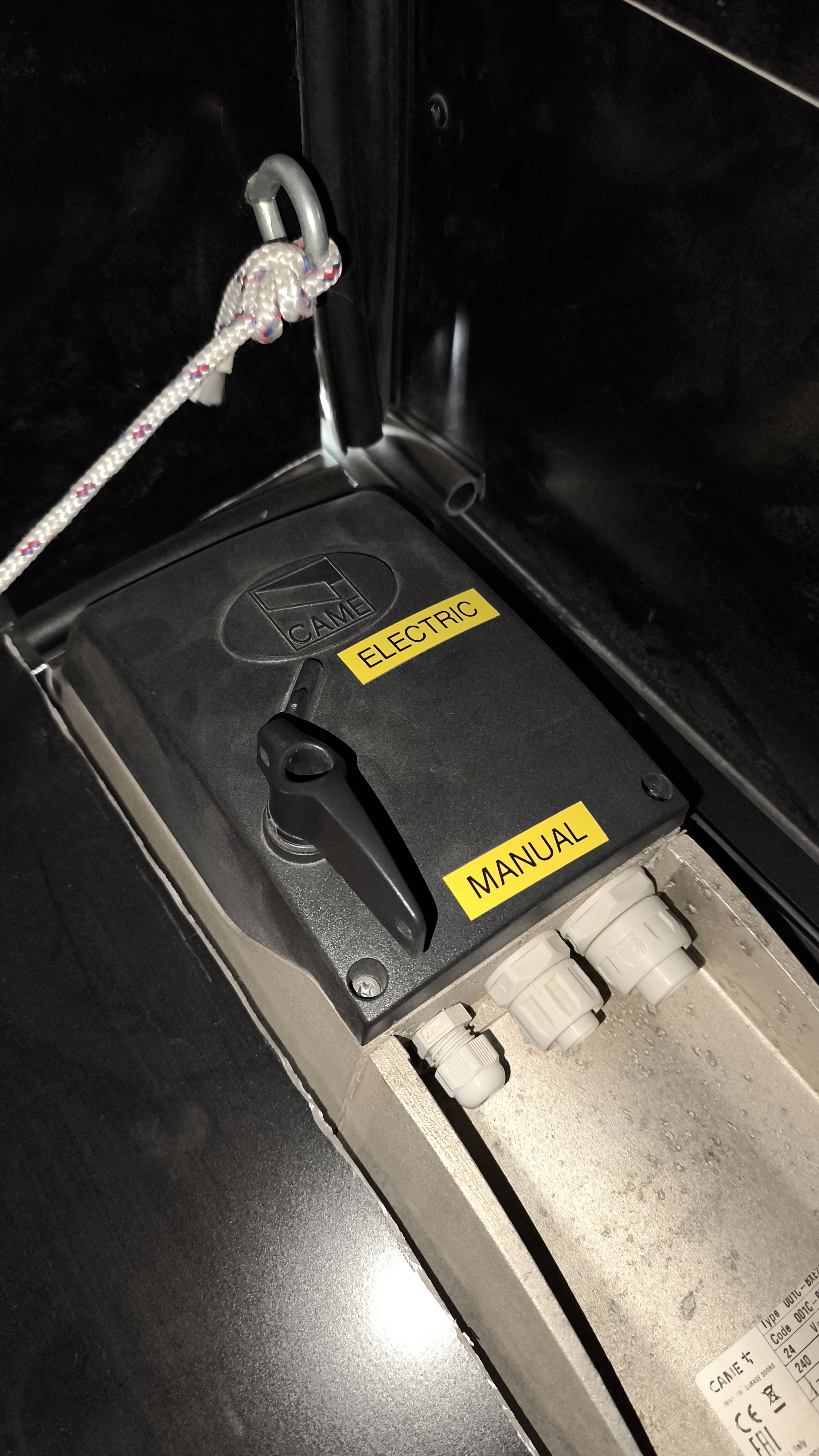
In order to switch the dome shutter into the manual mode, both motors need to be switched to the manual operation. Both motors have levers/handles that have to be switched/rotated to disengage the electric mode and engage the manual mode, and vice versa. For JK15, the lower motor is labeled; turn the lever from ELECTRIC to MANUAL (Fig. 7) to disengage the electric mode. For WK06 and ZB08 the levers work analogously; the lever position closer to "CAME" logo means ELECTRIC mode is on. When switched to the MANUAL mode, the gear motor is released from the chain, leaving the doors free to close by hand. In the ASA manuals of the domes the following nomenclature is used: motors blocked/locked = ELECTRIC mode, motors unblocked/unlocked = MANUAL mode.
The upper motor is unreachable without ladders/scaffolding, but for JK15 the switch/handle is right below it, at the eye level (Fig. 8). Rotate this handle clockwise 180° to engage the MANUAL mode, i.e. to disengage the upper motor. For WK06 and ZB08 the handles are next to the upper motors, thus unreachable without ladders/scaffolding. Alternatively, you can use a very tall friend or a broom to switch the upper handles in WK06 and ZB08 (I wish it was a joke; we're waiting for more serious suggestions from ASA). See Figures 9 and 10.
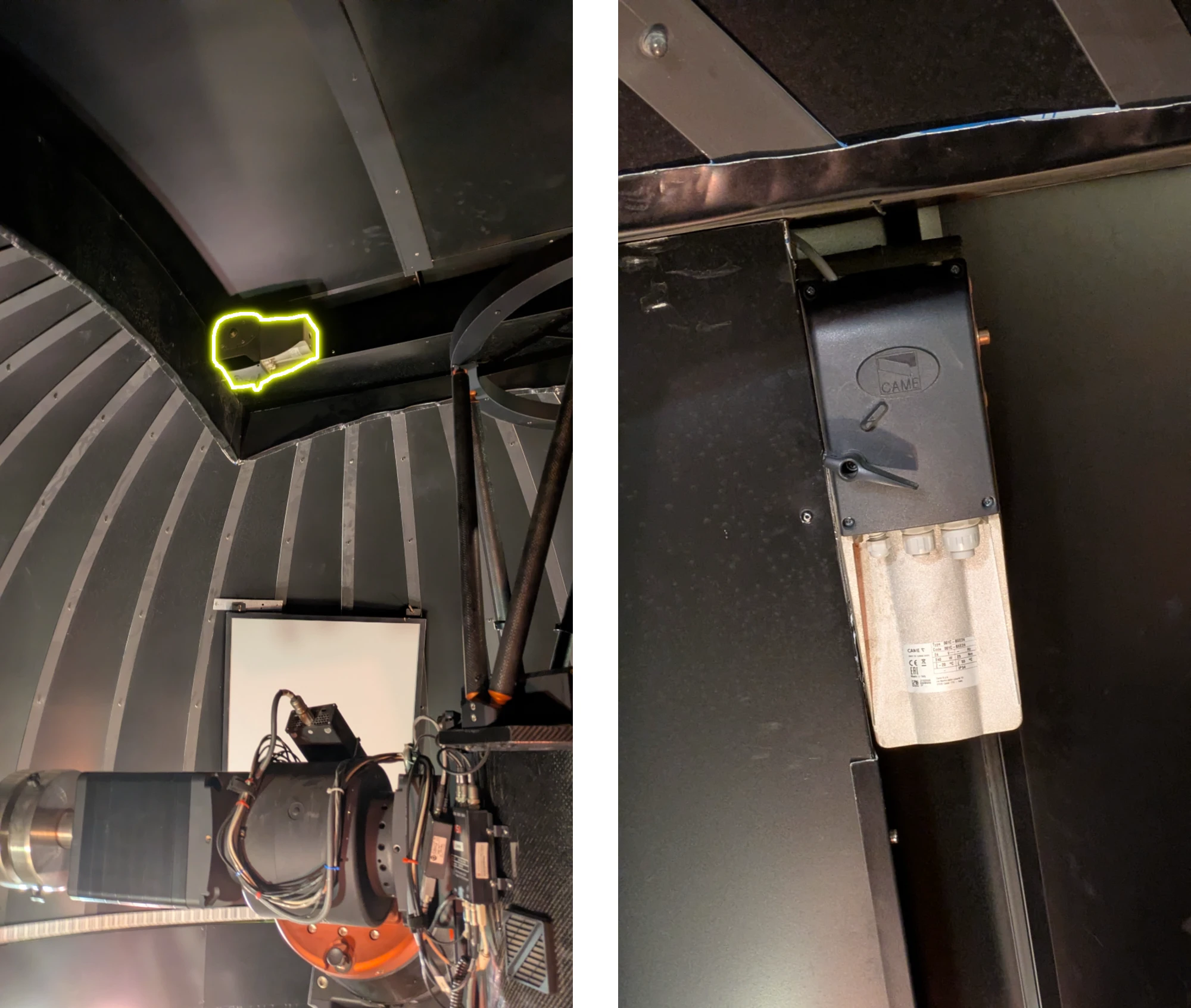
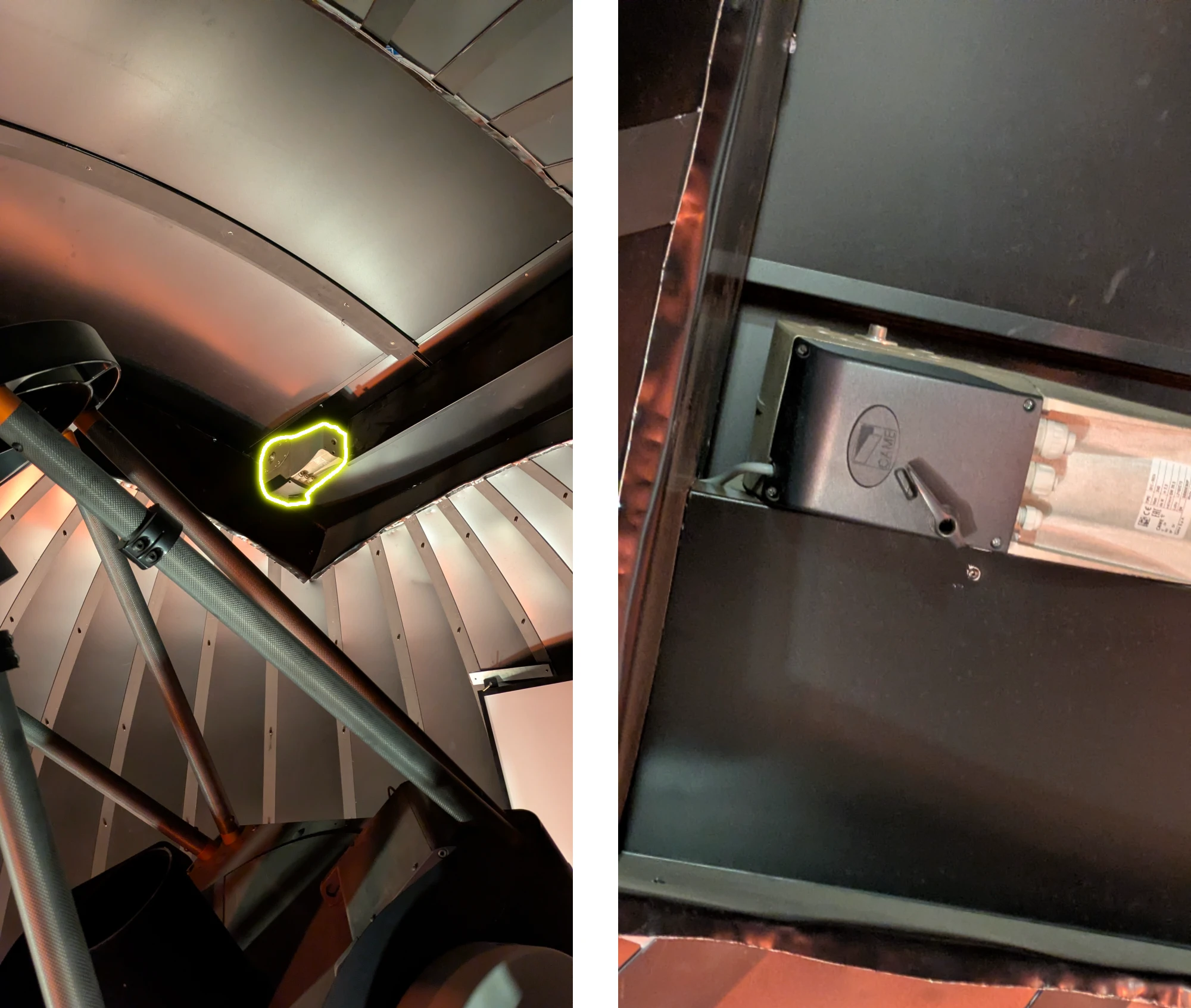
With both motors out of the way, you are now ready to pull the shutter into the closed state.
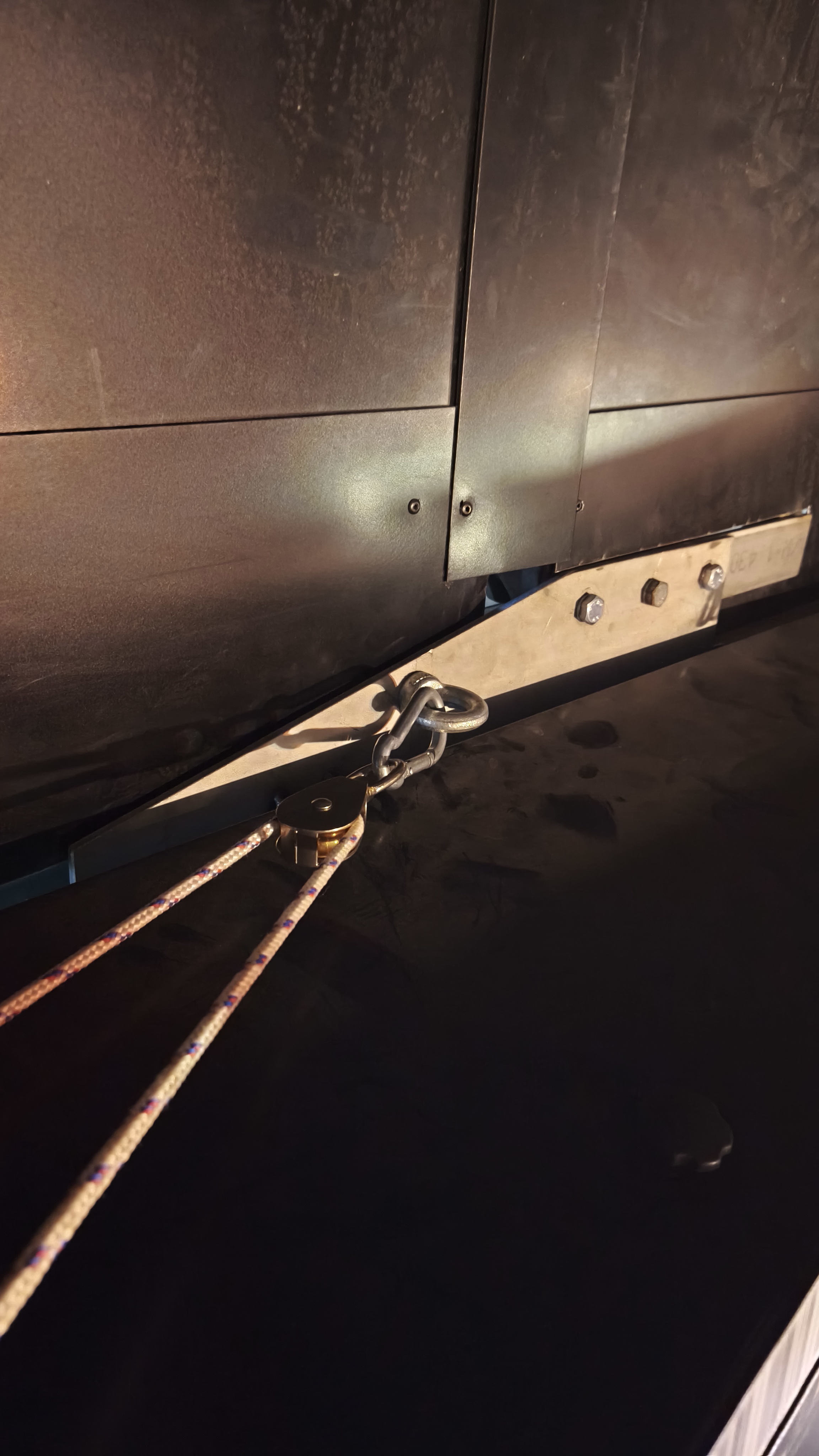
Shutter doors of JK15 are heavy, so this task has to be handled with the aid of a pulley/rope sitting right next to the bottom of the shutter. Hook the rope into the bottom of the shutter and pull (Fig. 11). To open the shutter manually, use the same rope: pull it in the opposite direction, with your hands on both sides of the rope.
The shutter will move and close. If it moves only a little and you feel a lot of resistance to fully close it, it means the motors are not fully disengaged. Check again the manual switch for the lower motor, and rotate the handle (JK15) for the upper motor more firmly, until the manual pulling of the shutter finds no resistance.
Once you can go back to the ELECTRIC mode, remember to:
1) turn the lever at the bottom of the shutter from MANUAL to ELECTRIC (WK06, ZB08, JK15)
2) for JK15 rotate the handle counter clockwise 180° to switch from MANUAL to ELECTRIC
3) for ZB08 and WK06 JK15 turn the lever at the top of the shutter to switch from MANUAL to ELECTRIC
I loaded plan with flats but it dissapeared or is showing an error
Most probably you loaded the plan designed for wk06 to zb08 or vice versa, and the filters in the flat sequence don't agree with the filters of the telescope. Remove the plan and load it again, pay attention which directory you are in when selecting the plan.
WK06
Camera of WK06 doesn't expose but the telescope moves fine
WK06 has a different TCU for the camera. So for the camera to work, check "wk06-ccd" computer on DWservice web page that it runs "ASCOM Remote Server Console". If it doesn't, double-click on the icon to start it. This should solve the problem. If the problem persists, contact oca-operations.
WK06 base of telescope leaks oil
If you see brown drops of oil oozing from the base of WK06, don't worry. ASA was informed about it and their response was, that it is 'expected in very warm conditions'. How their answer applies to our conditions remains a mistery. In the meantime you can clean the oil if it bothers you much.
WK06 mirror cover flap is loose and doesn't open fully
When opening mirror covers remotely (e.g. from TOI), the bottom (inner) flap opens normally, but the top (outer) one is loose and doesn't open fully. The status of mirror covers in TOI says "UNKNOWN" (neither open nor close).
If this happens at night during observations, stop the observations, find a tape or rope in bodega, and go to WK06 to tape/tie the top flap to the frame of the telescope. Resume observations as normal. After the night is over, go to the telescope, untie the flap and close both of them manually (using muscels of your hand). Take a rest, and approach solving it the next day.
One reason why this might be happening is a loose screw on the gear box. This gear box is covered with a case, so in order to tighten this screw you have to:
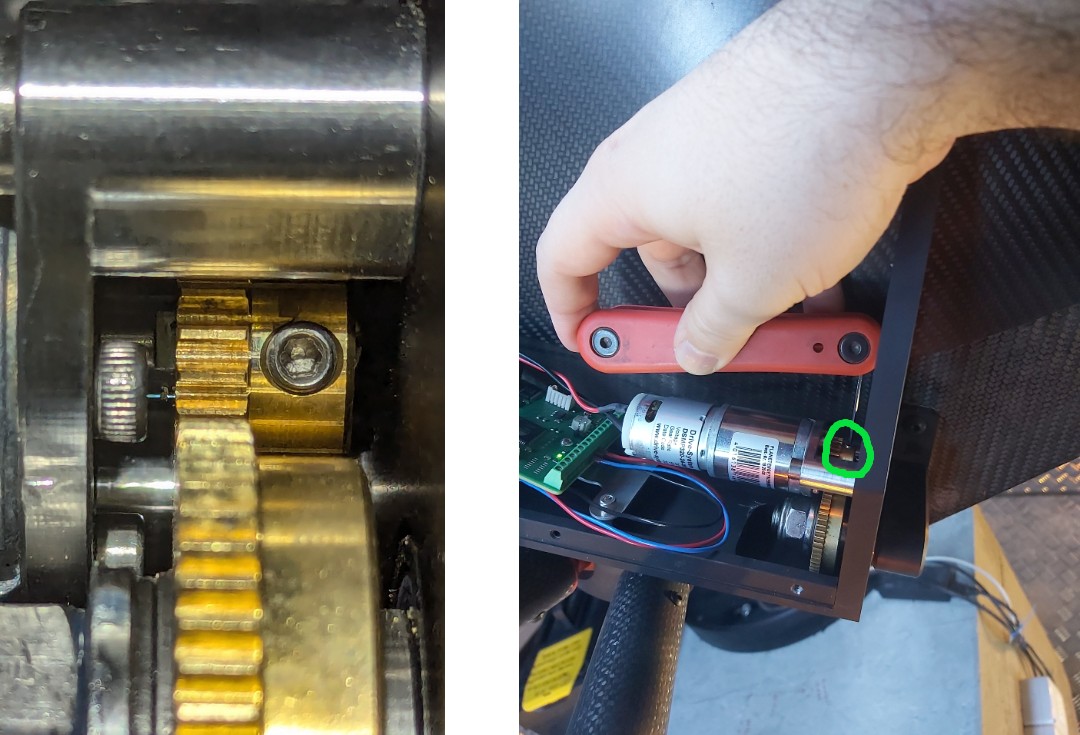
- Go to bodega and find inside a plastic tool box a red octagonal socket wrench (special tool for octagonal screws, Fig. 12) or a similar tool that has octagonal wrench no. 2.5.
- Take a helmet from longue - you will most probably bump your head on truss tubes.
- Coordinate with the other observer: one goes to the telescope (with walkie-talkie!) and prepares for the motors to turn off, to hold the telescope (WK06 is a little unbalanced). The other one stays in the control room to turn off the motors. Start with the telescope in the PARK position and remember how the telescpe is located in space because you will go back to this position before turning the motors back on at the end of the operation.
- Once the motors are off, the other observer can join the WK06 dome. Inside the dome put the telescope horizontally, so that when you unscrew the screws, they won't fall inside to the primary mirror.
- Prepare to take off the case of the gear box. First, unscrew 3 outer screws of the top flap (the loose one) using the octagonal wrench no. 2.5, while the covers are closed. Then open the top flap, and unscrew 3 screws located on the inside part of the telescope's "tube" (Fig. 13).
- Carefully take off the case and put is aside.
- Locate a small octagonal screw next to the gears and try to tighten it (Fig. 14). If it works, the screw was indeed loose. If the screw is already tight, the problem lies somewhere else. If you cannot locate the screw at all, close the flaps manually and opened them again remotely. This will move the cogs and put the screw in a place where it is reachable.
- Close the motor case in reverse order: inner screws, outer screws, close the flaps, move the telescope back to the PARK position and hold it until the other observer turns the motor on from TOI.
- As you are leaving the dome take the octagonal socket wrench and put it back in bodega.
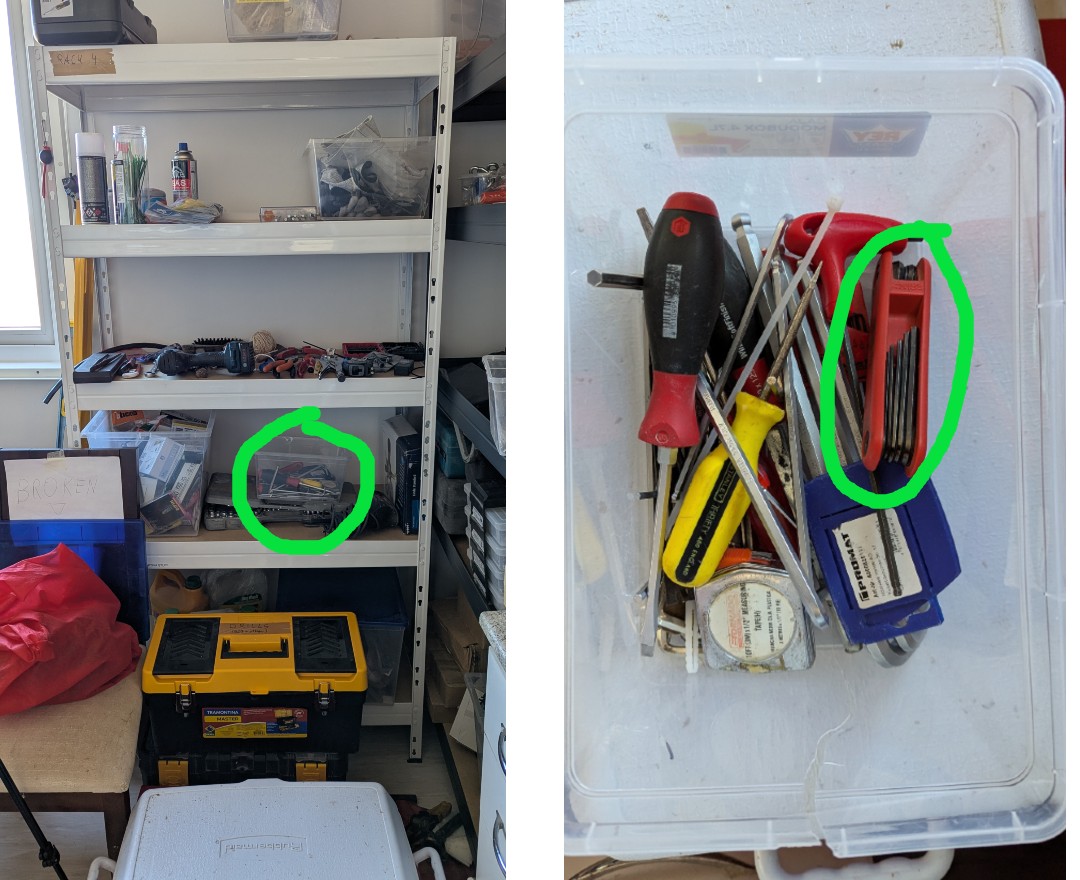
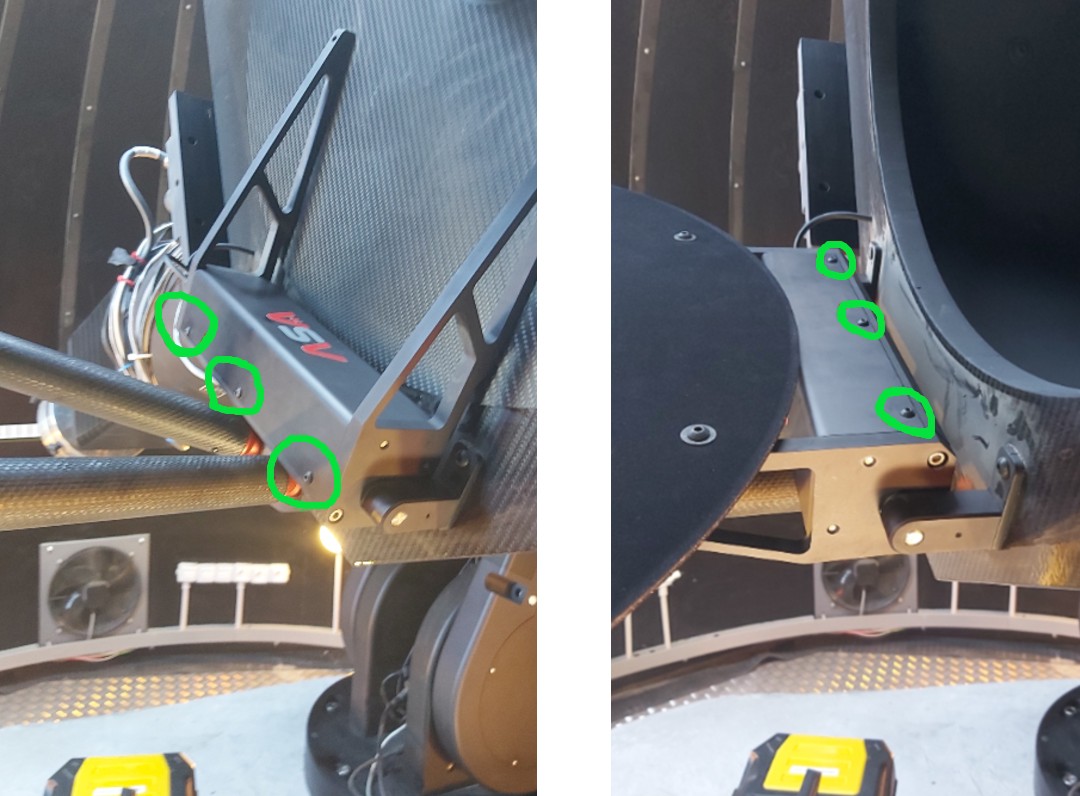
If you found that the screw is tight and the problem reoccurs, report it on GitHub Issue #125 and brainstorm with oca-opeartions.
WK06 mirror cover half-way opened
The symptom is UNKNOWN status for the mirror covers in TOI (neither open nor close). Visual inspection showed that one of the covers was only half-way opened. The problem seems different from this because the screw is already tight enough. For whatever reason (to be investigated) the flap doesn't fully open or fully close. In such a case close/open it fully with ASA Gateway software (red window on wk06-tcu) and check if the status changes from UNKNOWN to CLOSE/OPEN, respectively. Then try and open/close it remotely with TOI. Observers reported that they were able to open the flaps remotely completely without any further problems. If the problem reappears, continue this topic on GitHub.
Update: If the mirror covers close partially during the windy night, the problem might be strong wind gusts, which could blow on mirror covers (like wind in sails) when the telescope is moving from one target to another. Using ASA Gateway software (red window on wk06-tcu), close the mirro covers completely and reopen them. check on the camera if the mirror covers opened fully. If yes, resume observations, and bump issue #251.
Camera shows a column of dark or dead pixels
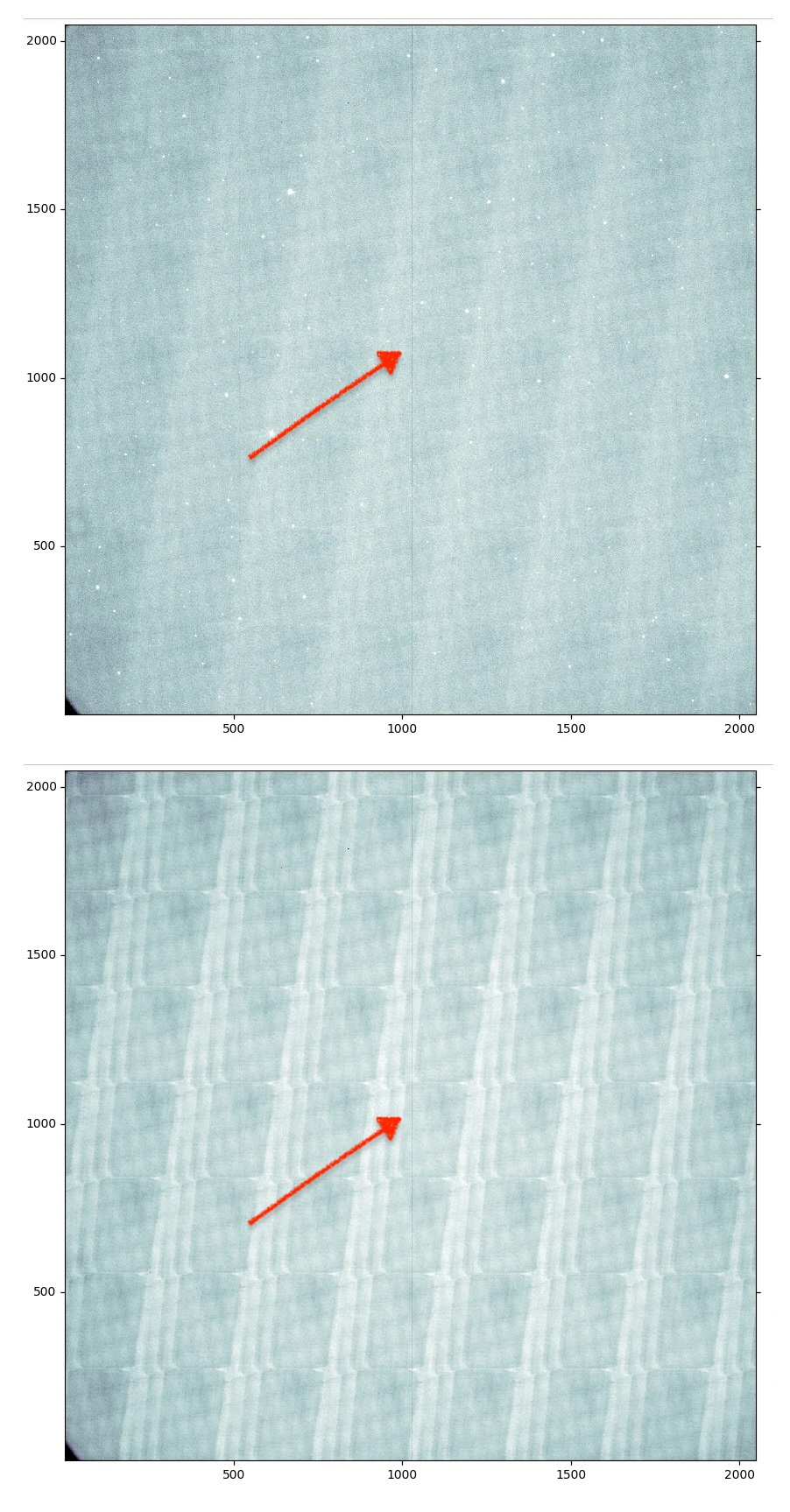
A column of dark pixels is visible in raw images of flat fields, and a master flat, too (Fig. 15). This behavior has been noted from time to time for wk06 and zb08 cameras. The most visible is the line in the middle, but some other less-visible lines also exist closer to the edge. We don't know why they appear, but in order to get rid of them, you must restart the camer(s). They are not permanent features of the cameras, so restarting solves the problem.
JK15
JK15 dome shutter stuck
When closing the JK15 dome with TOI, the shutter stuck just before reaching full closure. From inside of the dome the buttons close/open didn't work, so the dome had to be closed manually (the latches have to be switched to manual before the manual closure).
Source of the problem: 10A fuse in the control box has burnt out or slipped out of their sockets.
Solution: Stefan pushed the fuses back into their sockets and the problem dissapeared. If you try this and the problem remains, try exchanging both 10A fuses and the shutter should work back again. If 10A fuses are not at OCM, you have to buy them on your next visit to Antofagsta. Currently the upper motor switch to electric/manual position is not labeled/described, so you have to rely on a common sense or ask oca-operations.
JK15 dome shutter can't open in the electric mode (beating)
When trying to open the JK15 dome shutter from TOI, the shutter makes a beating noise and tries to open in a pulsational manner (a little open, close, open, close, with a frequency of 3-4 tries per second), but opens opens and closes normally when in the manual mode. The beating noise comes from the top of the dome. Video here.
Source of the problem: The chain in the upper part of the dome shutter came loose and fell off the sprocket, from the upper tier. In the manual mode this top chain is tighter than in the electric mode and so it closes/opens the dome normally.
Solution: Tighten the chain, but you cannot do it yourself because you don't have permit to work at heights and we don't have scaffolding. For now, open the dome shutter manually. Report the problem to Rolf Chini, because he collects all the problems with domes to report them all at once to Gambato - the company that built the domes so that they can repair everything once they come to OCM in the future.
JK15 the dome shutter shows status unknown
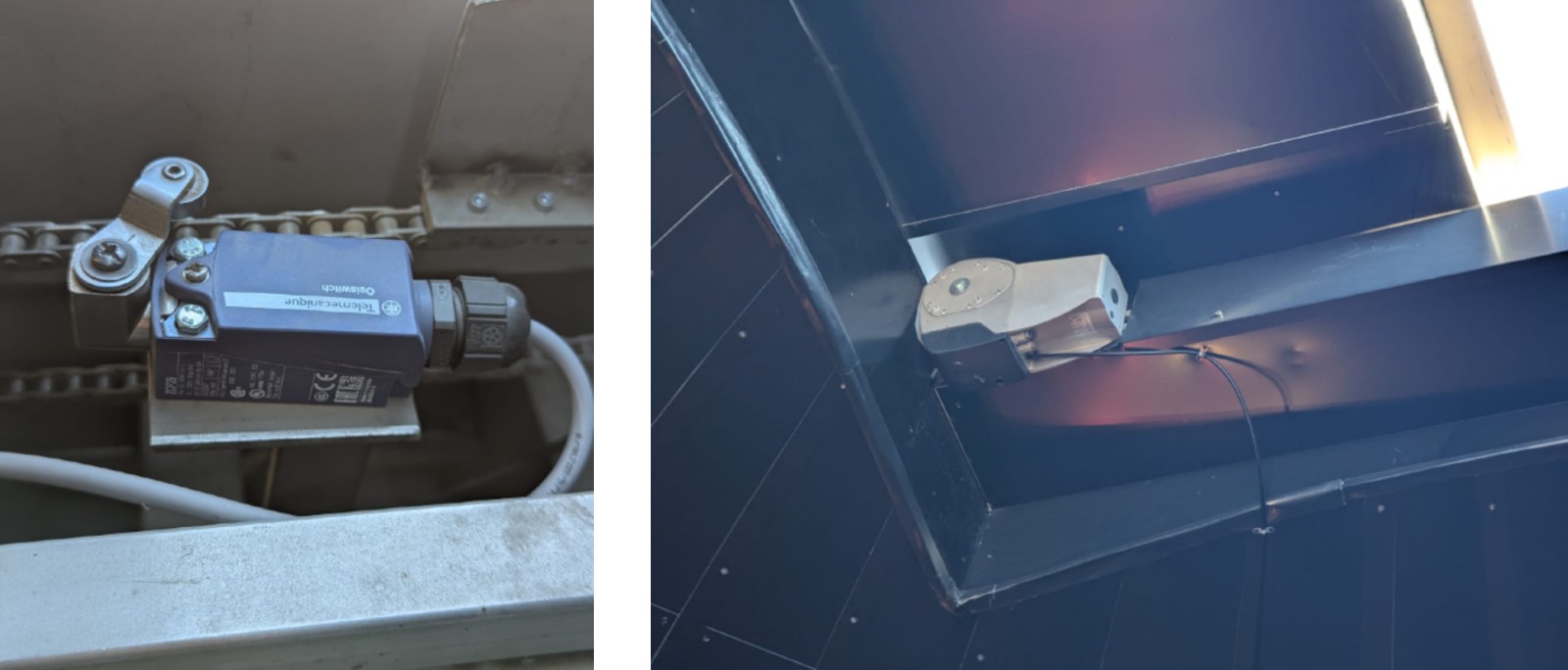
TOI (and ASA dome program) shows error in the status of the dome shutter of JK15. Restarting the ASA software doesn't help. Closing the dome with TOI doesn't help as the status remains open. Visual investigation (going to the dome and checking it by eye) shows that the dome didn't close completely, it remained slightly open in the bottom part. Closing it manually doesn't solve the problem, because TOI and ASA Dome software show the status open.
Source of the problem: The arm is slightly rotated, see Fig. 15.
Solution: Loosen the screw and rotate the arm a little bit until it detects the right ststus, tighten the screw back.
JK15 Remote Server shows error "Device camera/0 did not start" after starting up
The Remote Server did not start correctly, it shows error "Device camera/0 did not start". This is a common behavior. All you need to do is to either restart the Remote Server or enter and exit the setup window without doing anything - this should reload the drivers and fix the problem.
JK15 ASA ACC collapsed/froze while observing
Before ACC collapsed, TOI showed that for JK15 the focus value -194, then a jump back jump to the correct value. Restarting ASA software in order on tcu didn't help - the Alpaca gateway was not responding. Restarting the whole Windows machine didn't help either. But the jk15-ccd is working. After another restart the tcu shows an error: "Device camera/0 did not start".
Solution: Turn off tcu programs, restart the Remote Server on jk15-ccd (even though it looks like it's working fine), only then open Alpaca and Remote Server on jk15-tcu. "ASCOM Remote Server Console" will take long to start, and the camera will heat up during this time, so remember to cool it down before resuming observations.
Find similar issue on GitHub or add new one and put ASA label and Wolfgang as an assignee. ASA usually "fixes" the problem by restarting the software, so we need some stats to persuade them to take some serious actions.
JK15 suddenly parked in a completely different position
If JK15 the position (as you see on the camera or with your own eyes) is different by some large but exact numbers, e.g. 180 deg in AZ and 45 deg in ALT, the problem is most likely the overwritten initialization file or the initialization file reverted to default. This could be a false synch or an error during unexpected shutdown. Luckily, Autoslew has a auto backup function so you can easily restore the system. Go to Autosfew and from the menu on the top left of the window choose Settings → Restore. Choose a file - it should be the last working file before any error occurred. Just to be sure, you can pick a file from a week or month before the problem occurred. Click [action needed]. Do we restart the program?
JK15 doesn't see stars but the dome and mirror covers are opened
Make sure that the light from the telescope reaches the camera: set the tertiary mirror (M3) to ADR10 in Autoslew.
Power failure in JK15
The procedure below works in the cases where the power failure was caused by the fuse supplying the plugs, which is switched off.
-
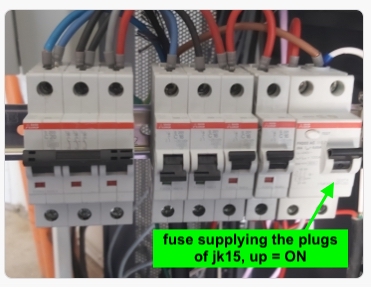
Go to the JK15 dome and find this fuse on the ground floor, in the rack, to the right from entrance, together with 7 other fuses (8 in total, Fig. 16). Your fuse is the first one from the right. Switch on this supplying fuse by pushing it up (up=ON). The UPSs and other devices in the rack should then turn on.
-
Switch on the com ports (communication ports) in the remote power switch. There are 8 com ports in total:
- port 1: main drivers (responsible for movements of the telescope in Alt/Az axis)
- port 2: aux (ancillary drivers: focuser, derotator, filter wheel, mirror covers)
- ports 3-6: free
- port 7: dome (powers the grey box on the second floor in a direct vicinity of the telescope)
- port 8: TCU computer
You can switch them on either physically or remotely.
- Physically. The remote power switch is located in a grey cabinet mounted to the pillar of the JK15 on the ground floor. Open the cabinet (Fig. 17). By pressing a select button (1) choose which port you want to turn switch. The LEDs (3) show which port is currently selected. Press and hold OK button (2) to switch on the currently active port. The LED changes from red to green when the power port is switched on.
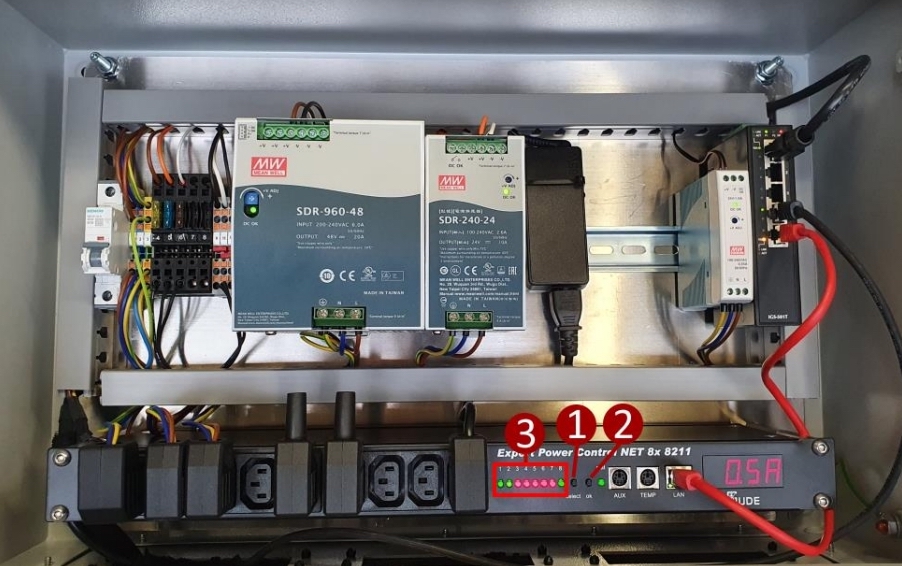
Fig. 17. The remote power switch of JK15, located in a grey cabinet mounted to the pillar of the JK15 on the ground floor. - Remotely. Alternatively, switch the com ports via a website jk15-power.oca.lan (login and password are saved, so you don't have to provide them). After you logged in, press ON button next to the ports 1, 2, 7 and 8 (Fig. 18).
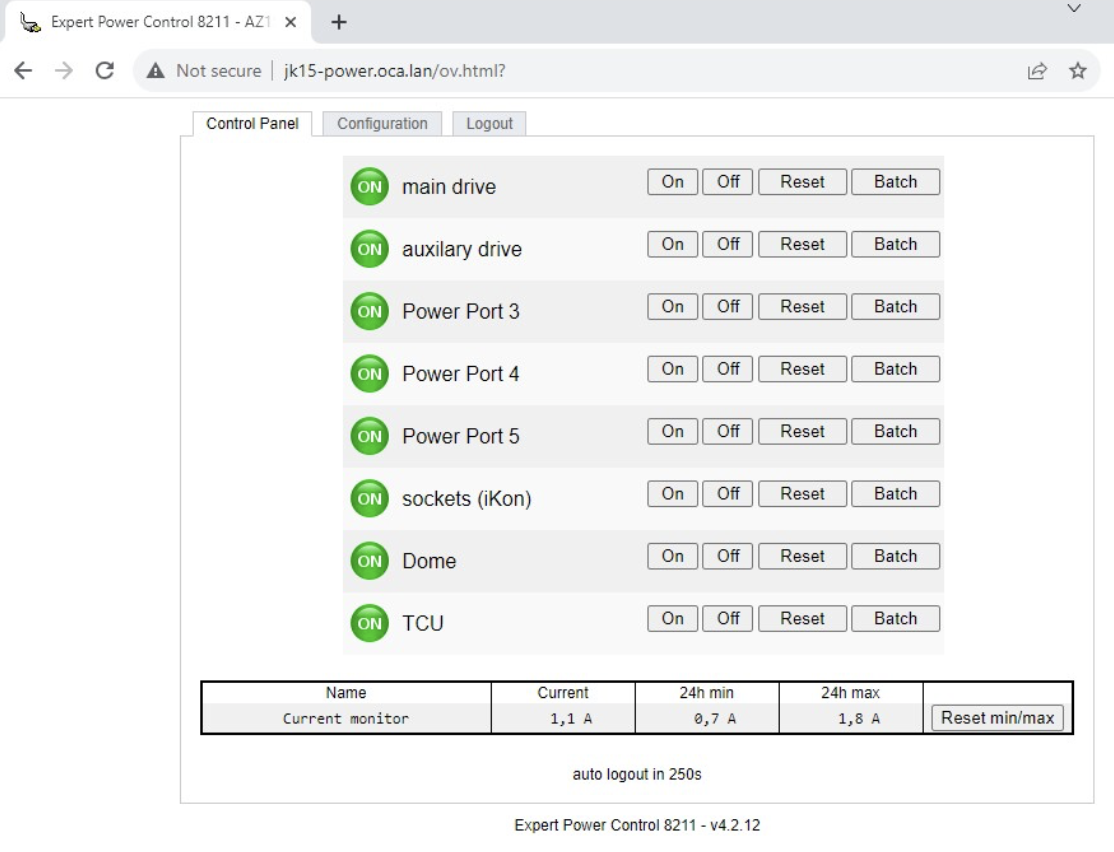
Fig. 18. The webpage with com ports that can be switched on remotely. Next, check if the following devices are pinging (Fig. 19), e.g.
ping 192.168.7.121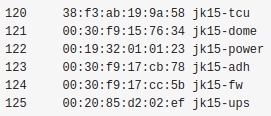
Fig. 19. IP addresses that can be pinged to see if com ports are on.
jk15-tcu
jk15-tcu (192.168.7.120) will resist to return the information if you are not logged in into some of the 192.168.7.?? machines.
jk15-ups
jk15-ups (192.168.7.125) will be: Destination Unreachable, because it is not connected.
JK15 position is home, but points to somewhere else (not to home)
Autoslew did a wrong sync and set a new wrong home position. This new position is stored in the EndPar.in file. If this is your case, use a backup file EndPar.ini with correct home position. A backup file is stored in a backup Autoslew directory:
Windows (C:) > ProgramData > ASA > AutoslewBackup > EndPar.in
Copy this file to:
Windows (C:) > ProgramData > ASA > Autoslew > EndPar.in
The telescope should point to the right home position now.
The procedure ???: <-- todo
- Turn off the telescope, motors, mount etc?
- Copy the file from backup dir to Autoslew dir
- Turn all on
Also, if you migrate the system to another computer, you just copy the whole directory Autoslew and the system is working on another computer as it did on the previous one.
EndPar.ini is very important. Is for whatever reason the home position of the telescope gets messed up, Cl-Servos.ini (Comport=1, mount parameters), Cl-ServosT.ini (Comport=7, parameters for tertiary mirror), Autoslew.ini (locations' limits, contains information on alpaca ports)
JK15 can't find good focus
It can happen when a night is problematic (large seeing in general, strong wind) or if the telescope's collimation is off. In the TOI's focus window the fit won't be a concave function ("arms down") but a convex function ("arms up") or a straight line (see egzamples of good and bad fit in Fig. 20).
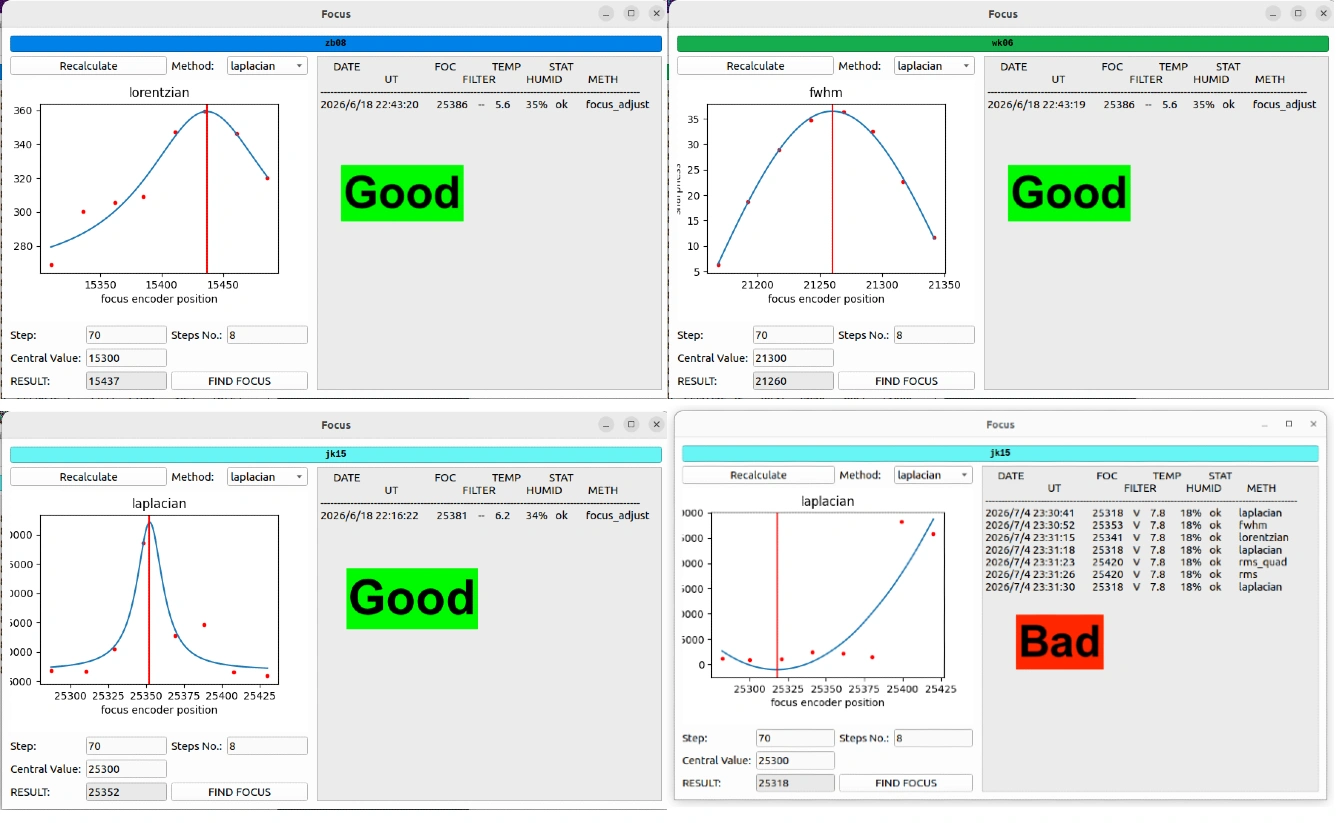
To bring the telescope's collimation back to its default value (home), go to DWservice → jk15-tcu → Screen → in the red window "ASA Gateway" click the last tab "Mirror Cell Collimation" (has icon of circle with 3 up arrows) → click button "Go to Home Pos". Try focusing again.
If the focus still cannot be found, increase the number of exposures from 8 to 12. This will give more data points to fit to. You can also try to set the central position of the focus to the default one. Another thing you can do is to open TeDa and go to the directory "focus" where all the focus images reside. Click them one by one and check FWHM of a selected star (keyboard key "r" on the star). Pick the image in which the star looks the sharpest ("old-school astronomy") and set this focus value in TOI.
ZB08
ZB08 returns error when opening the mirror covers
This can happen if the covers closed wrong and the sensors controlling the opening of the covers got confused. A solution is to set the covers to OPEN and go to the telescope and manually gently open the cover(s) all the way till the limit. The covers now will have the status OPEN.
ZB08 or JK15 doesn't move / slew to another target or stops moving / tracking while on target. TOI says mount is OFF
If you try to move the telescope from TOI and you get the message that the mount is OFF and on top of that, you can see a "Position error" message in the autoslew window (Fig. 21), it means that the telescope has made more than one revolution (> 360 deg), but didn't keep the record of it, and now is close to its mechanical limits.
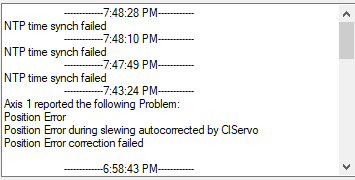
The mechanical limits are at about 340 deg after one full revolution in either direction (so at about +/- 700 deg), with the "0 degree reference point" being towards the south. In principle, the software should remember how many revolutions in what direction the telescope has had, but in some situations this information is either lost (the motors have been switched off and on again while the telescope was beyond its "comfortable rotation zone", i.e. 0 +/- 360 deg) or overrode (long observations on one target force the telescope to continuously rotate as it follows the target). We are doing our best to implement a more sophisticated software routine to prevent it from happening, but for now there is no prevention, only the cure. This is what you have to do:
- Turn the motors off (in Autoslew or TOI), and close all the windows controlling the telescope, including windows on Windows computer, TOI, text gui etc.
-
Turn the mount off. In order to do that:
- Start a web browser
- Go to "OCM Home" website
- From the left-hand menu, named "OCM Links" choose the one on the bottom, called "Remote controlled power sockets", click on zb08-power
- Log in as observer with the standard password
- On top tabs, click "PDU"
- On the left-hand vertical menu click "Outlet action", and below it "Control"
- Choose an action from drop-down menu: "Turn off"
- Check the box with #1 mount
- Click "Next" and "Apply". Now you should see an asterisk in the status of mount - that means that it's turning off. Once it's off you'll see it changed color to grey.
-
Now get a flashlight, take the key labelled "DOME ZB08" from the key box on the shelf in the control room, and go to ZB08:
- Once you're in the dome, on the top floor, close the trapdoor, stand next to the telescope, grab it gently and start rotating (take it on a walk) slowly until you reach the mechanical limit (marked on the base of the telescope, Fig. 22). It doesn't matter if you turn the telescope left or right, as long as you reach any of the mechanical limits. You will feel the mechanical limit is reached because the telescope will stop; you will also see a small vertical groove on the bottom part of the moving telescope (Fig. 23) pointing to the mechanical limit marked with a tape. To make sure that this "telescope walk" is as smooth as possible (the telescope doesn't hit anything nor you trip over).
- Now unroll it one full turn (360 deg), so that the telescope is back within its comfortable rotation zone, pointing more less to ELT
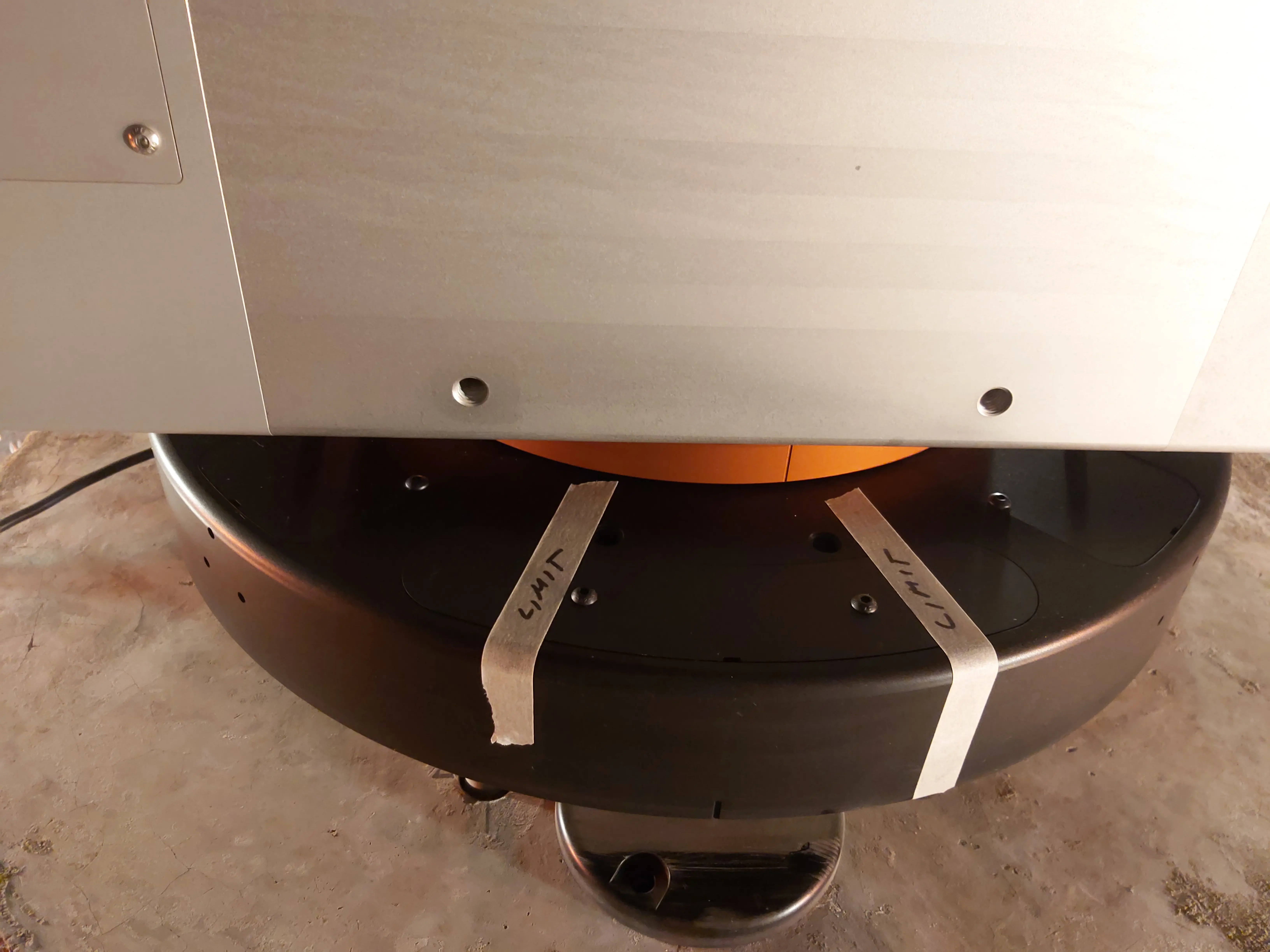
Fig. 22. ZB08 limit positions. 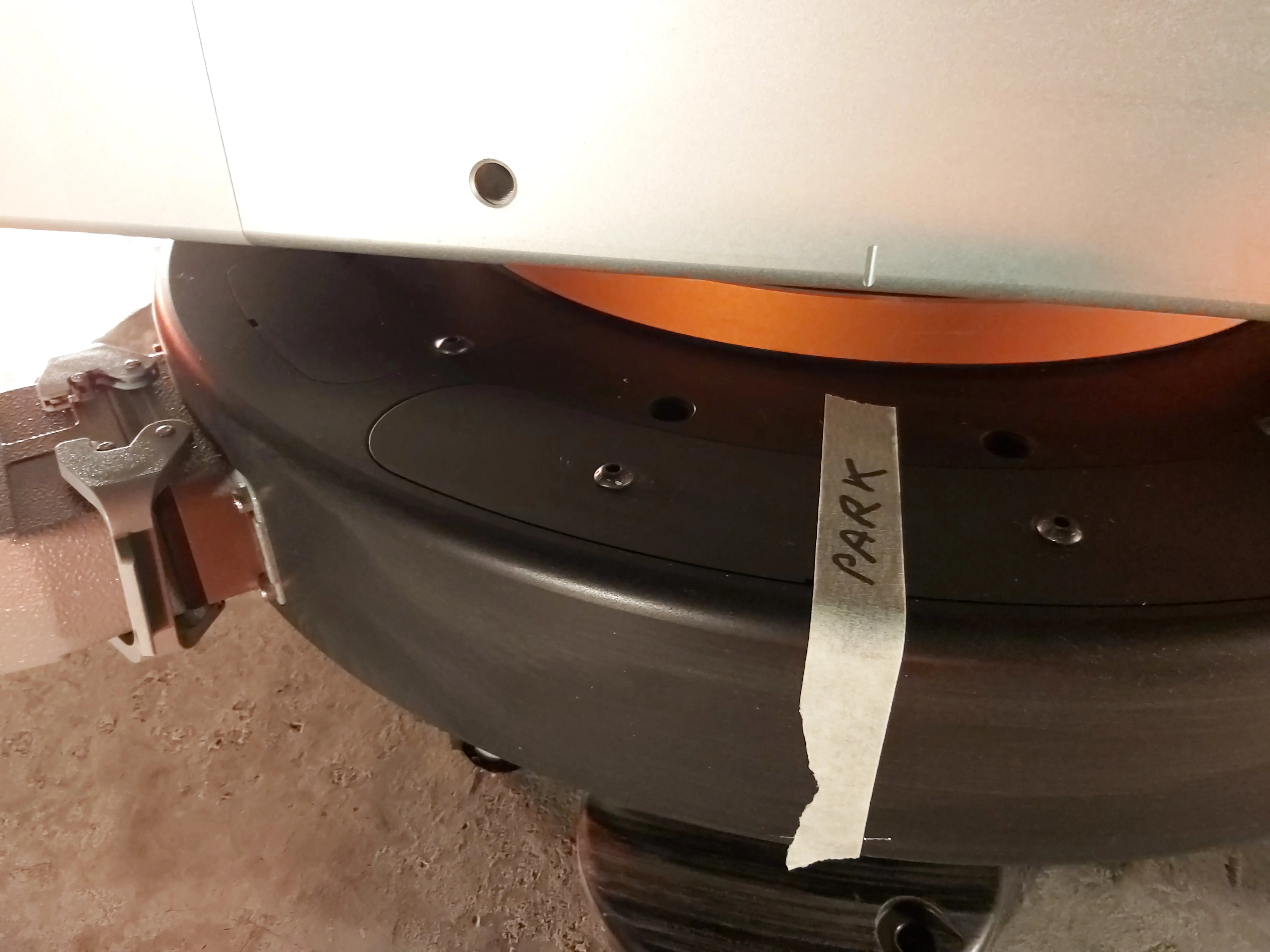
Fig. 23. ZB08 parking position. A small vertical groove on the bottom of the moving telescope lies directly above the tape marking the parking position. -
Go back to control room:
- turn on the mount; just follow the same steps as described in point 2, but this time choose from a drop-down menu "Turn on"
- do the regular procedure of starting the telescope
After above steps the telescope should be able to slew again. Try it by moving it to any arbitrary location that is within its limits (Alt > 15 deg).
IRIS
Frozen LN2 valves in the camera dewar
When the humidity is higher than 50% for longer than [insert time interval, 2h?] prior to the refilling, water vapor from humid air can deposit on the valves, creating frost that blocks the valves. In such a case, one may experience problems with filling the camera dewar with liquid nitrogen. The symptoms are that about 2 minutes after the start of the nitrogen flow, it starts to leak from the holes below the metal pipe of the dewar.
You need to use a heat gun to defrost the valves and then fill the dewar. During this procedure, you can observe water dripping down from the valves. Warming up the valves may take several minutes.
After the local area computer network (LAN) breakdown
It has been observed that after a local area computer network (LAN) breakdown, the computers (irisc, irisccd, irisp) do not operate properly. They require a reboot.
The simplest way to do it is to go to the ground floor in the IRIS dome and restart each of the machines. In each case, one needs to short-press the power button and wait a few minutes until the computer switches off. Then press the power button again to turn it on. The complete start will take a few minutes.
WARNING! These computers and their batteries are pretty old, and they should not be left switched off for a long time. Otherwise, they may forget their configuration.
- After the reboot of
irisp, one needs to startPilar. - After the reboot,
iriscautomatically starts 3 instances ofvncserverwith a 1280x800 resolution, which is too small for our needs.
To fix this, do the following:
> ssh irisc
# password is irismgr
> vncserver -kill :1
> vncserver -kill :2
> vncserver -kill :3
> rm /tmp/.X11-unix/X1
> vncserver :1 -geometry 2560x1080
(Note: resolution UWFHD)
No VNC connection to irisc
The VNC desktop is probably not activated. You need to log in to irisc.
In a terminal on aux, type:
> ssh irisc
# password is irismgr
Then type:
> vncserver -kill :1
> rm /tmp/.X11-unix/X1
> vncserver :1 -geometry 2560x1080
We might (or might not) want to have a spare small virtual desktop running:
> vncserver -kill :2
> rm /tmp/.X11-unix/X2
> vncserver :2 -geometry 800x600
Now log out (> exit) and try to connect to the desktop in Remmina.
No VNC connection to irisp
First, one may try to log in to irisp:
> ssh user@irisp
# Enter password
At the moment, the command vncserver-x11 starts the vino VNC server. As of March 2026, we are observing an unstable LAN connection to the IRIS computers. It comes and goes away by itself.
In any case, you can go to the ground floor of the IRIS dome and check the VNC server (vino) status using the monitor and the keyboard located on the computer rack (black keyboard with British layout). Open a terminal and start/restart vncserver-x11. Then it should be working when the connection is back.
irisc or irisp is not accessible via network
It sometimes happens that one of the IRIS computers disappears from the LAN. We do not know the exact reason why it happens, and we do not know a quick solution. The experience is that they become visible by themselves after some time (from a few minutes to half an hour).
The dome does not react to the iris_dome.py commands
- Open DWservice in a web browser (Chromium).
- In the left-side menu, select Outgoing Shares.
- Select the icon
OCA-admins iris-dome. - Select the icon
Screen. - Start/restart ASA Dome.
- Start/restart ASCOM Remote Server.
That should solve the dome problem.
vncviewer does not work for irisc
VNC display is probably not activated. You need to login to irisc:
ssh irismgr@irisc
Then type:
vncserver -kill :1
rm /tmp/.X11-unix/X1
vncserver :1 -geometry 1280x800

vncserver -kill :2
rm /tmp/.X11-unix/X2
vncserver :2 -geometry 1280x800
Logout and try to connect to the displays with vncviewer.
Telescope does not want to go to the requested position
Most probably something is wrong with Pilar (on iris machine, access from DWservice). Check if it is running. If not, start it by clicking on the icon on the Desktop of irisp.
If it is running, check in the ‘Engineering’ panel if there are any errors (red are errors, yellow are only warnings, not important). If so, click ‘Clear’ button on the bottom. If they do not disappear, you can try to go to IRIS dome, and turn off the big cabinet on the ground floor (Figure unavailable) by turning the black knob, wait 10 seconds, and turn it on back.
Wait ~1 minute, the computer inside the cabinet should reboot. If not, press the ‘space’ button, it should help. When it is rebooted, you can go back to the control room and restart ‘Pilar’ software on irisp, and press ‘On’ in Pilar. If errors have not gone, close the telescope if possible, close the dome and contact pwielgor [at] camk.edu.pl.
GPS time differs significantly from UTC
The GPS clock inside the IRIS cabinet should be connected with serial cable to IRIS-TCU (dome computer) as HOPF software is installed there to communicate with the clock.
There is a possibility to manually set the time, timezone, etc. Update GPS time if not updated automatically and differs significantly from real UTC.
The dome does not open / move / close
Log into DWservice in the browser → go to "Shares" → "iris-dome" → "Screen". In case everything is OK, you should see two programs running: ASA Dome and ASCOM remote server. Since there are problems, likely these are down, or ASCOM Remote Servers reports errors. Close the two, and open again in the order:
- ASA Dome
- ASCOM Remote Server
This should solve the problem.
Connection with irisp in case of DWAgent
To connect with irisp desktop in case of DWAgent failure try Remmina at aux computer. IP: 192.168.7.130 Standard password, available on site.
Error in iriscom program on irisccd
When an error occurs in the iriscom program, it sometimes helps to do the following:
- Exit from irisCCDGUI
acsStop killACS - Stop iriscom
lotusreset iriscom acsRunup - Start again
irisCCDGUI
You can also try another solution that worked (This solution worked for the error: E100 Invalid or ambiguous command):
- Exit from
irisCCDGUI(If it doesn't respond, typeCTRL+Cin the green window). - Stop ACS (
> acsStop). - Kill ACS (
> killACS). -
In the IRISCOM window (yellow one), make sure that the
iriscomcommand is enabled and you type commands directly intoiriscom:- type
dl - type
et 2 - type
go
- type
-
If the photo is taken, proceed to the standard observation startup procedure.
Opening dome with iris_dome.py doesn't work
- Go to DWservice, click on "iris-dome". You will see standard ASA programs: "ASA Dome" and "Remote Server". You can open and close the dome from "ASA Dome".
- If that doesn't work, restart the "ASA Dome" and "Remote Server" programs. Then try again.
- If that doesn't work, restart iris-dome computer (from the context menu). The screen will freeze because the computer is restarting and DWservice lost the connection. Close the iris-dome tab, wait a few moments, then open from DWservice iris-dome again. Open "ASA Dome" and "Remote Server" programs. Then try again to close the dome using "ASA Dome".
- If that still doesn't work, take the key to IRIS, make sure on CCTV cameras that IRIS is in its parked position. Go to the dome and close the dome shutter with a push of a button located next to the dome shutter on the upper floor. Leave the dome, lock it with the key.
- Report the problem to oca-operations and add a comment to this GitHub Issue #247.
Error messages indicating problem with Pilar
Clear messages in Pilar, restart Pilar (very vague but if you encountered such a problem, share your solution).
irisccd doesn't boot
The message on the monitor of irisccd in the IRIS dome says about kernel panic and error -500. Write to oca-operations, request help of Chris. In the meantime turn irisccd off and write in the night log that no observations with IRIS are possible for now.
Images are not saved because there is no directory
Usually a new directory where the most recent data will be stored is created automatically. Sometimes, this fails and images are not saved because there's no recent directory to save them to. Create this directory yourself – you will see where from the error message, and report the problem to Piotr W. or/and Piotr Ż. on Slack. You can also create a ticket on GitHub oca-problems.
After ACSRunup not all containers have status "Ready"
If the last message in every container in not "Ready", in irisc:1 Xterm 4 type:
acsStop
killACS
acsRunup
BESO
Guider camera does not produce images
Symptoms
In the guider, despite mode "monitoring" or "guiding", the images are not refreshed. On the status line, the status of the service is degraded.
Cause
The usual cause is that the USB connection to the guider camera is lost. The problem is unfortunately known to happen on Windows computers.
Solution
The solution is to reestablish USB connection. In the spirit of the "minimal impact fix principle" the least invasive way to do so is to reset its USB port – which physically switches power off and on at the USB and helps in most of the cases.
- Go to DWservice, enter jk15-ccd.
- Start the "USB Device Tree Viewer" (shortcut on the Desktop named "UsbTreeViewt") with administrator rights - right-click on the icon and choose "Run as administrator".
- Unfold the tree as shown in Fig. 24 until you reach [Port6]: ZWO ASI174MM Mini Camera
- Right-click on this port and choose "Restart port" (just port, not device!)
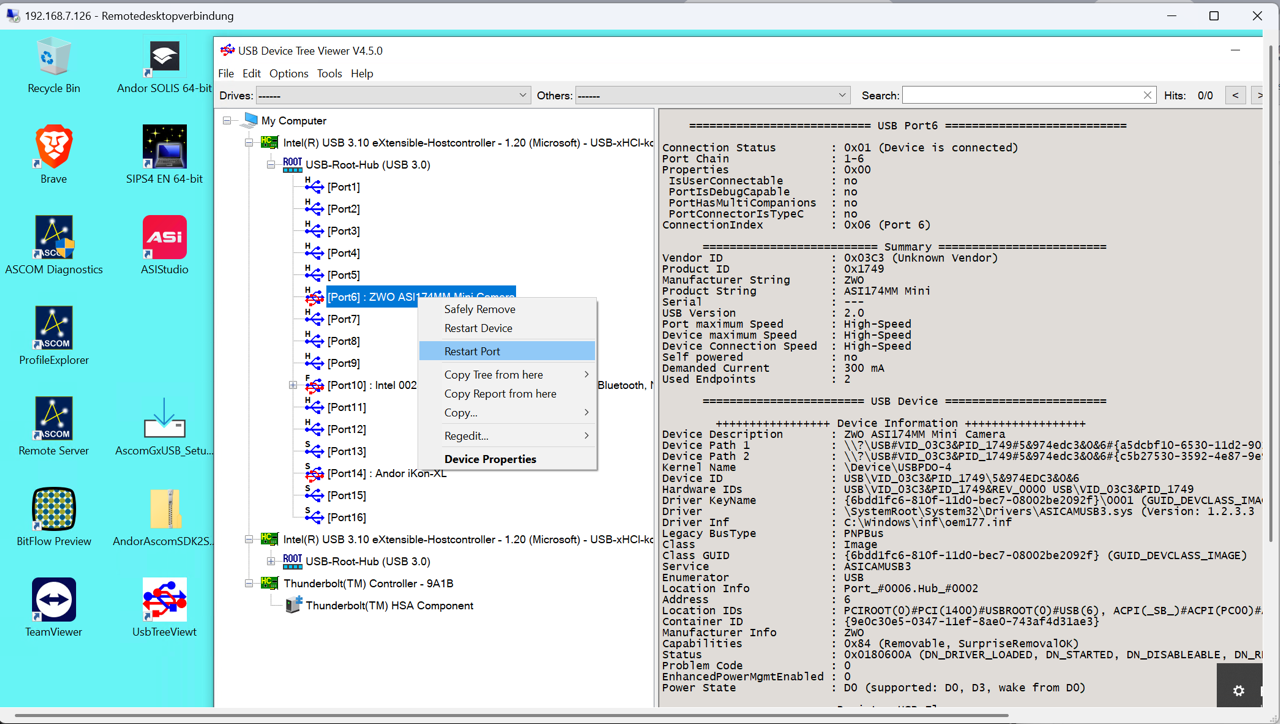
When you only restart the port, all other programs and processes remain active, especially the jk15 Andor camera. This is very good news, because with a traditional reboot of jk15-ccd or jk15-tcu computers, the connection to the camera is lost and the camera starts to heat up dramatically within a few minutes, which means you have to "waste" time to cool it down.
You can reset almost any USB power driven device this way on Windows with this program.
But usually, after restarting the port the ASCOM camera driver remains inactive. If camera still does not produce images, you have to reload the driver in "Remote Server" on jk15-ccd. Unfortunately, this procedure reloads all the drivers, including the one for the jk15 Andor camera, which means that the Andor camera will start to heat up, and you will have to cool it down again.
- Find an open window of "Remote Server"
- Click "Setup" and then exit setup without doing anything else.
- If you successfully reloaded the driver, the connection with the jk15 Andor camera was lost, and the temperature of the camera started rising. Set the temperature back: on zenith/nadir computer type in a terminal (its wise to prepare this command in the terminal before you start the procedure, so that you can execute it immediately after reloading the driver):
oca jk15 camera settemperature -- -50 - Check if the camera is cooling again in TOI or observing output of the
settemperaturecommand. You can also monitor the temperature with`:If reloading the driver in the "Remote Server" didn't help either, disconnect physically the USB cable. Go to the jk15 platform. The BESO fiber unit seats in the second nasmyth port, opposite to the Andor camera (Fig. 25). The acquisition camera is the tiny red camera (see picture below). One USB-C cable goes into that camera, disconnect it, wait a little, and connect it again. You should here a click when is well connected. Make sure not to move anything while connecting/disconnecting this cable. Go back to the acquisition camera software and check if images are refreshing now.oca jk15 camera temperature --monitor
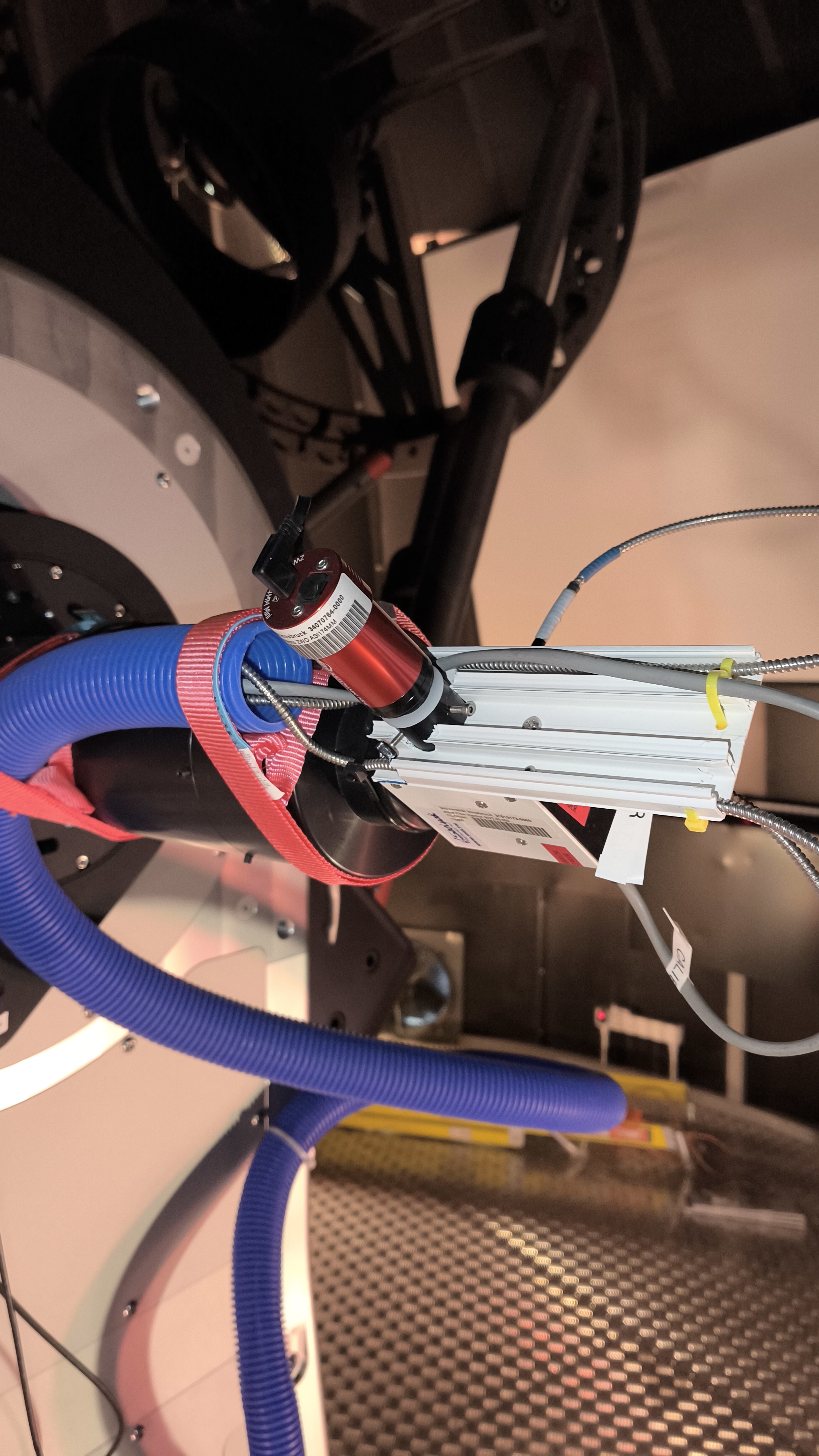
If disconnecting the USB cable didn't help, follow the standard routine of restarting all programs on jk15-ccd and jk15-tcu, and if this doesn't help, restart also computers. If this doesn't help, write to oca-operations.
Once the camera is back, the guider recovers by itself — no service restart is needed. Frames reappear within seconds and the status returns to normal; then continue as described in the BESO guider manual.
I don't see my star in the guiding and acquisition camera :(
The acquisition/guiding camera is operated through the guider UI — controls, modes and the wide-search behaviour are described in the BESO guider manual.
First go through this checklist:
- Is the M3 in position?
- Make sure the acquisition camera is monitoring instead of OFF.
- Make sure you have zoomed out completely in the acquisition camera viewer. The star may just be away from the center of the camera, or have a large proper motion.
- Is the star too faint? You may want to increase the exposure time in the acquisition camera.
- Double check the coordinates given via TOI.
If the acquisition camera images do not refresh at all, then go to problem above
I don't see light from the ThAr or flat lamps.
This is a persistent issue that has appear randomly, and has been difficult to troubleshoot, but seems related to the calibration mirror and not the lamps. Work on this is ongoing.
BESO client doesn't start and gives "cannot connect" error
It is likely that the BESO server is down for some reason. First you can ping for its status with:
ssh server_status@jk15-beso.oca.lan (use typical password for the observer)
If you get back a message that is not running, you will need to restart server. This is just one line command again, but it is strongly suggested you read the relevant section (5.1) in the BESO manual to run it.
BESO client starts but hangs when given commands
It is likely that another instance of the client is already running. Find it and close it. Only one instance of the BESO client can be active.
TOI
TOI freezes before saving my exposure
In the top middle area of the Plan Manager window click "Resume" button. This will redo the exposure and hopefully it will save it now. If the exposure wasn't saved, try "Resume" again, as many time as needed. You can try manually starting the exposure in the Instrument Manual Control window. If you lost hope, move on to the next target or close TOI and star it again (remember to save your observing plan or generate a new one when TOI restarts).
TeDa
TeDa doesn't see the new directory
The TeDa refresh mechanism does not work with NFS directories, e.g. /data/*.
TeDa loads the information about the directories only once when it is started, and for NFS it does not refresh it later.
Simply restart TeDa.
Water
No hot water
Get sure that you give the hot water a chance to reach the tap (see also Circulation Pump). If you still don't have hot water, check the water heater section.
Site
Potsdam BMK telescope has light turned on in their dome and the light leaks outside
If the Potsdam BMK telescope is operating during the night and that hampers our observations, you should immediately let the Potsdam people know:
- Jorg Weingrill: jweingrill@aip.de or +49 15737137076 (doesn't have WhatsApp)
- Tomas Granzer tgranzer@aip.de
Check for the previous emails exchange to see what and how to write.
Potsdam BMK telescope's dome shutter got stuck and cannot close, makes noise
Let the Potsdam people know by email.
- Jorg Weingrill: jweingrill@aip.de or +49 15737137076 (doesn't have WhatsApp)
- Tomas Granzer tgranzer@aip.de
I can't find the key from WK06 dome/room and from Potsdam dome
Usually, all they keys are located in the key box in the drawer in the control room, and labeled accordingly (e.g. "DOME ZB08"). The only two exceptions are WK06 room/dome and Potsdam dome, because to open these domes you use the very same key that opens the main door. However, you might need to use some strength or wiggle the key in order to open the WK06 door.
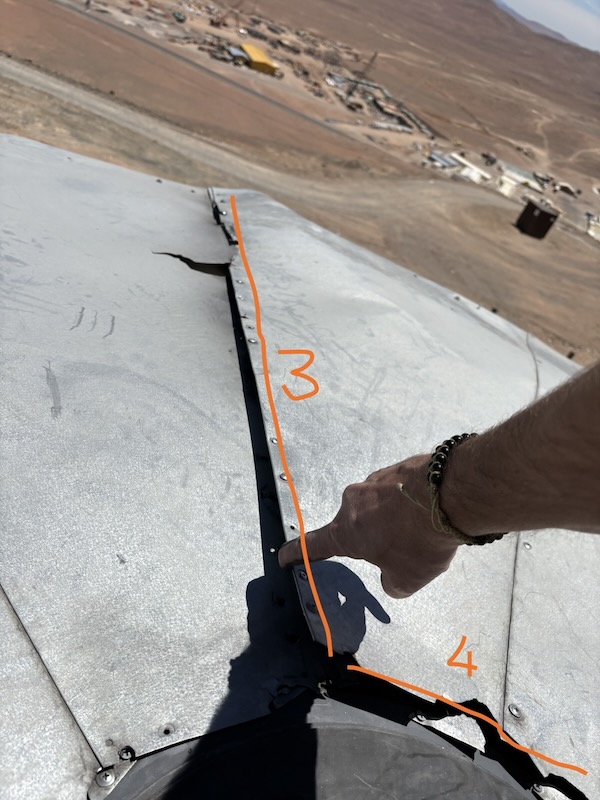
A pice of water tank cover is lose and waving in the wind
Your situation might be similar to the one shown in (Fig. 26). After the wind calms down find a riveter in bodega in a drawer and use it to patch the water tank. For a better grip you might need to use some small sheets of metal as a "glue" to stick together pieces of the water tank. Where possible, use small screws to attach the metal sheets to the wooden structure or water tank itself.
You may also check the document Water-tank-status for some clues for more difficult cases.
The camera CE-Diesel is offline
A temporary outage may be caused by automatic upgrades of the camera's firmware. Please, wait one hour before reporting the issue and see if the camera goes back online on its own. If it doesn't, locate the camera's cable, which connects it to the router in the battery room, unplug it and plug back, and see if that helps. If it doesn't, contact oca-operations.
Bodega smells like poop
This happens when gasses from the septic tank get to bodega through the sink pipes, because the plumbing trap (kolanko) is dry. A solution is to turn on the sink tap in bodega for a moment, so that the water accumulating in the plumbing trap creates a seal and prevents sewer gasses from flowing up through the trap and into the bodega. Adittionally, open the window/door and ventilate the room.
Electricity
A blackout when the batteries are almost fully recharged
This problem stopped occurring since the software parameters of the solar panels were tweaked by Mauricio from Aquito Solar. If you experience any problem with the solar panel, it's most probably a new one, and we don't have the troubleshooting for it. Consult oca-operations on Slack or WhatsApp.
Accessing files and directories
File manager escapes from directories
When you enter a direcotry mounted on /data/ using the file manager on ZENITH, NADIR or AUX, and wait idle 3-5 seconds, the file manager automatically escapes
from this directory stepping back through the folder structure until it reaches the top-level directory. This happens only to directories mounted over a network
(in this case the data directory mounted via NATS). It is caused by intermittent connectivity issues or read timeouts. As a result, the file manager loses access
to the current directory, and automatically reverts to the parent directory, and, if the issue persists, continues stepping back through the hierarchy until it
reaches the root directory (here data).
If this bothers you a lot, report it to oca-operations, but otherwise: * try to work fast with the file manager * use terminal instead
ChatGPT recommends to "ensure there is no interference from auto-mounting or idle-timeout tools (e.g., autofs, udisks) that could unmount the directory after a short period of inactivity."
Life at OCM
I broke/damaged something and cannot repair it myself. I noticed something is broken but it wasn't me!
These things happen to you and/or to others. The observatory is a work in progress and the best you can do is to inform us about the problem so we can solve it as fast as possible.
- If the problem is urgent inform oca-operations immediately.
- If the problem is not urgent, inform about it on the next Tuesday meeting.
- Write down the moment you broke or noticed the broken thing into the OCM Calendar, tab comments.
Blackout
This might happen because of the weather (high humidity) or some maintenance or development works. Recently if happened because a fuse snapped in JK15 dome. If this happens again:
-
Go to the server room, and check if:
- Peron and Pierun have their green lights on; if no - turn them on
- 3 black boxes: Navia, Box5, and Majka have their green lights on; if no - turn them on
-
On the OCM home website go into "power" and for each telescope of something has a red indicator - switch it to the green one.
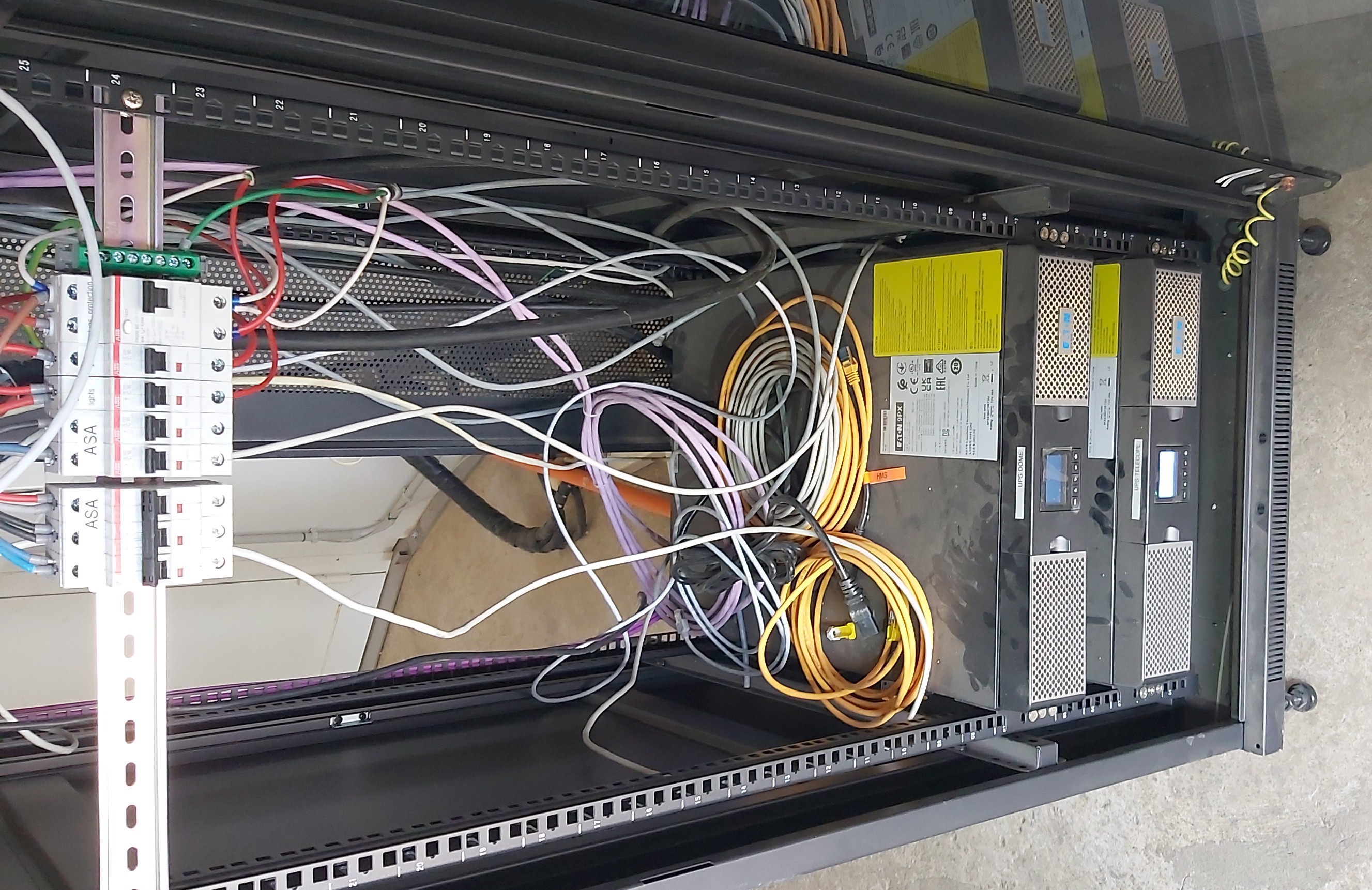
- Enter DWservice web page and reset everything for every telescope. If you don't see JK15, you have to go to the JK15 dome, locate the rack with fuses and UPSes and turn on the most right-hand side fuse (slightly isolated from the rest) and power buttons in both UPSes on the bottom of the rack (Fig. 27).
-
(Re)Start TOI and for all telescopes to their default values:
- turn the motors ON
- turn the coolers ON
- set the camera temperature
- set gain mode
- set readout mode
- set binning
-
Take a SNAP photo to see if everything looks alright. If Mirek's program doesn't analyze the first SNAP, take another and wait for the analysis.
Miscellanea
nats: outbound buffer limit exceeded
Solution: restart Virtual Machine nats.oca.lan